Entina 3D Printer Review: Is It Worth the Money?
Are you looking for a 3D printer that won’t break the bank but still delivers quality prints? The Entina 3D printer series has been making waves in the maker community.
These compact machines offer incredible value for beginners and young creators. This review covers everything you need to know about Entina printers before you buy.
The 3D printing world can feel overwhelming with so many options available. But Entina has simplified the experience for newcomers.
Key Takeaways:
- Fully Assembled Design: Every Entina printer arrives ready to use. No complicated assembly required. You simply remove protective packaging, attach the filament holder, and plug it in. This feature saves hours of frustration that beginners often face with other brands.
- Budget Friendly Pricing: Entina printers start at around $179 and go up to $350. This price point makes 3D printing accessible to families, students, and hobbyists. You get excellent value without compromising on essential features like auto leveling and WiFi connectivity.
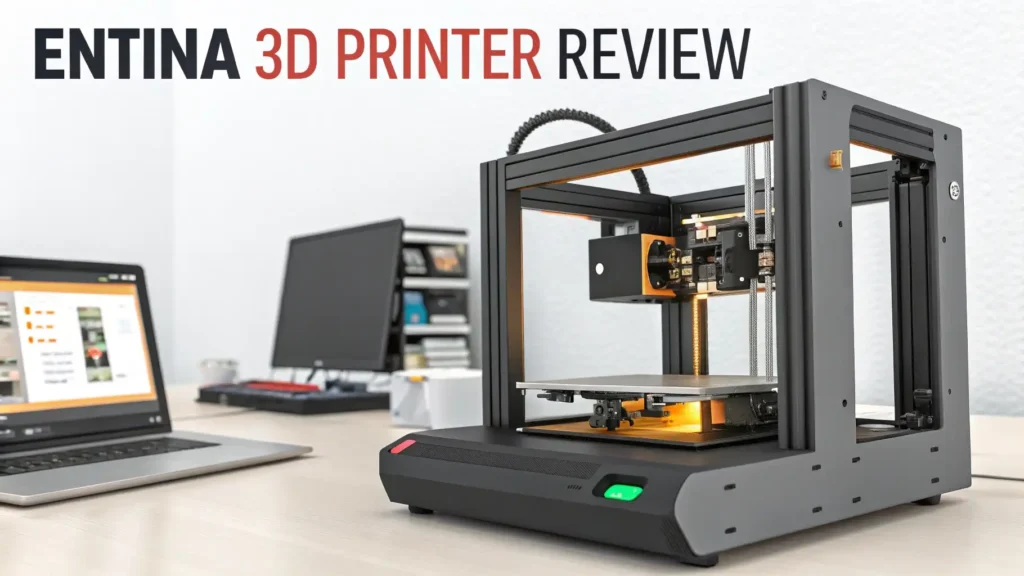
- Perfect Size for Learning: The compact dimensions make Entina printers ideal for home offices, classrooms, and small workspaces. The Tina2 models are roughly the size of a small laptop. You can easily move them between locations without hassle.
- WiFi Cloud Printing: Most Entina models include WiFi connectivity and cloud printing through the PoloPrint app. This means you can start prints from your phone or computer remotely. The app also provides access to a huge library of ready to print models.
- Great for Kids and Education: The safety features and simple interface make these printers perfect for young users. Children as young as 6 years old can participate in the printing process with adult supervision. The learning curve is gentle and encouraging.
- Auto Leveling Technology: Bed leveling is often the most frustrating part of 3D printing. Entina printers include automatic bed leveling. This feature ensures your prints stick properly to the build plate. It eliminates one of the biggest headaches for beginners.

Entina Tina2Plus V3: The Premium Choice
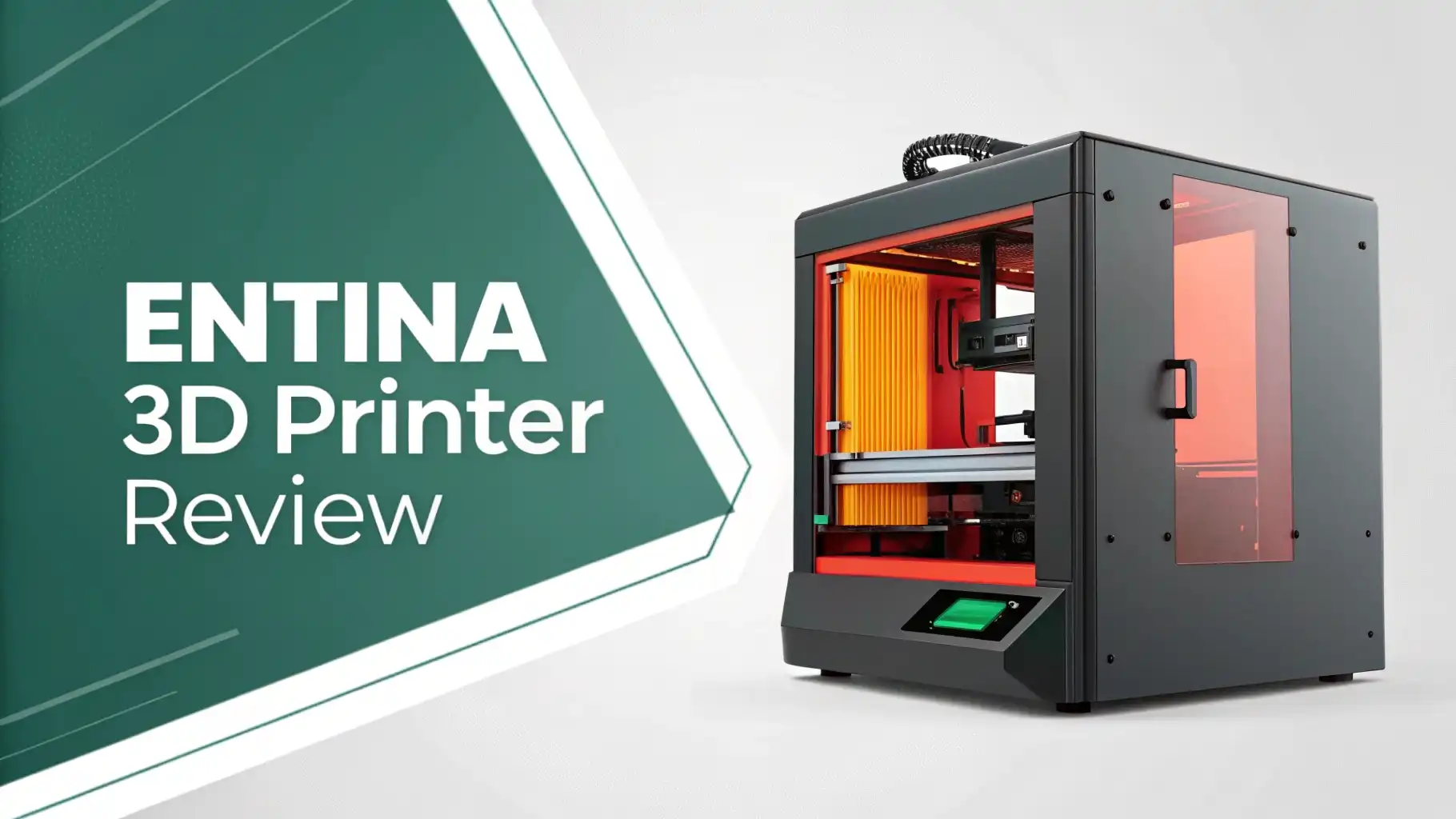
The Tina2Plus V3 represents the upgraded version in the Entina lineup. This model brings high speed printing at 250mm per second. That speed means you finish prints much faster than standard budget printers. The printer includes a spring steel build platform that makes print removal incredibly easy.
The build volume measures larger than the basic Tina2 model. You can create bigger projects and more ambitious designs. The WiFi connectivity lets you monitor prints from anywhere in your home. The fully assembled design means you start printing within 5 minutes of opening the box.
This printer works perfectly for families who want reliable results. The auto leveling system calibrates the bed automatically before each print. You don’t waste time or filament on failed prints due to leveling issues. The precision reaches 0.02 to 0.04mm, which delivers detailed results for small figurines and toys.
The Tina2Plus V3 supports both PLA and TPU filaments. PLA works great for decorative items and toys. TPU allows you to print flexible objects like phone cases. The removable magnetic platform means prints pop off easily once they cool down.
Entina Tina2S: Best Value for Beginners

The Tina2S hits the sweet spot between price and features. This model includes everything a beginner needs at an affordable price. The fully assembled design eliminates setup anxiety. The printer arrives calibrated and tested from the factory.
Cloud printing through WiFi makes this printer incredibly convenient. You can browse the extensive model library through your phone app. When you find something interesting, send it to the printer with one tap. The huge library includes toys, decorations, practical items, and educational models.
The auto leveling feature saves tremendous time and frustration. Manual bed leveling requires patience and practice. The Tina2S handles this automatically before every print. This feature alone makes the printer worth considering for newcomers.
The compact size fits perfectly on desks, shelves, or countertops. The partially enclosed design provides some temperature stability. This helps prints adhere better and reduces warping. The print volume measures 100mm x 120mm x 100mm, which works well for most beginner projects.
Parents love this printer for introducing children to 3D printing. The simple controls include a small LCD screen and a scroll wheel. Kids can navigate the menu easily without confusion. The printer operates quietly enough for use in classrooms or bedrooms.
Top 3 Alternatives for Entina 3D Printer


Print Quality: What to Expect
Entina printers deliver acceptable print quality for their price range. They are not designed to compete with professional machines costing thousands of dollars. Instead, they provide reliable results for toys, figurines, and simple functional parts. The surface quality comes out decent on most prints.
Test prints like calibration cubes show reasonably sharp corners. The layer adhesion works well with proper settings. Some users report minor issues with overhangs and bridges. These challenges are common in budget printers. You can improve results by adjusting slicer settings and printing slower.
The extrusion accuracy sometimes shows minor inconsistencies. You might see slight variations in wall thickness. Some prints display tiny pin holes between layers. These imperfections rarely affect functional use. They become more noticeable on large flat surfaces or detailed models.
Setup and Ease of Use
The setup process takes less than 10 minutes for Entina printers. The machines arrive nearly completely assembled. You only need to remove protective braces and tape. Attach the filament holder and tube. Connect the power cable and turn it on.
The included instructions provide clear step by step guidance. Even complete beginners can follow along successfully. No tools are required for the basic setup. This contrasts sharply with many other budget printers that require hours of assembly.
The control interface uses a simple LCD screen and scroll wheel. You navigate menus by turning the wheel and pressing to select. The display shows print progress, temperatures, and basic settings. The interface remains intuitive even for young users.
Software and Slicing Options
Entina recommends their WiiBuilder slicer software. However, many users find this program limited and buggy. The software offers basic functions but lacks advanced features. It sometimes crashes or produces errors. Most experienced users recommend switching to better alternatives immediately.
Cura slicer represents the industry standard for FDM printing. This free software works excellently with Entina printers. Cura provides extensive control over print settings. You can adjust layer height, print speed, support structures, and hundreds of other parameters.
Learning Cura takes some time but proves worthwhile. The software includes profiles for many common printers. You can customize settings for your specific Entina model. The community provides excellent tutorials and troubleshooting guides. Cura regularly receives updates with new features and improvements.
Print Capabilities and Limitations
The build volume on Entina printers ranges from small to medium. The basic Tina2 offers 100mm x 120mm x 100mm. This size works perfectly for toys, small figurines, and desk accessories. The Tina2Plus provides more space for larger projects. Consider your typical print sizes before choosing a model.
The maximum extruder temperature reaches 245 degrees Celsius on most models. This temperature handles PLA and PETG filaments easily. PLA remains the most popular choice for beginners. It prints reliably at lower temperatures and produces minimal odor.
The temperature limitation prevents printing exotic materials. ABS typically requires 260 degrees or higher. Nylon and polycarbonate need even higher temperatures. These materials also demand a heated bed and enclosed chamber. Entina printers focus on the most common filament types.
What’s in the Box
Entina printers arrive with everything needed to start printing. The package includes the fully assembled printer, power adapter, and USB cable. You receive a sample roll of PLA filament to begin immediately. A MicroSD card contains test models and setup files.
Basic tools come included for minor maintenance. A small scraper helps remove prints from the bed. Spare nozzles provide replacements when needed. The instruction manual covers setup, basic operation, and troubleshooting.
The filament sample typically contains 200 grams of material. This amount produces several small to medium sized prints. You’ll want to purchase additional filament soon after starting. Entina sells compatible filament bundles through Amazon and their website.
WiFi and Cloud Printing Features
The PoloPrint app transforms the printing experience for Entina users. This cloud platform connects your printer to your smartphone or tablet. Setup requires connecting the printer to your home WiFi network. The process takes just a few minutes following the included instructions.
Once connected, you access a massive library of printable models. The collection includes thousands of designs across many categories. You find toys, decorations, useful household items, and educational models. Many designs are free while others may require credits or purchases.
Remote monitoring lets you check print progress from anywhere. The app shows estimated time remaining and current temperatures. You can pause or stop prints if you notice problems developing. This feature provides peace of mind when running longer print jobs.
Maintenance and Troubleshooting
Regular maintenance keeps your Entina printer running smoothly. Clean the build plate before each print with isopropyl alcohol. This removes oils and residue that prevent adhesion. The magnetic surface wipes clean easily with a cloth.
Check the nozzle periodically for clogs or buildup. Small bits of burnt filament can accumulate over time. Run a cold pull procedure to clean the nozzle interior. Heat the nozzle, insert filament, let it cool slightly, then pull firmly to remove debris.
The belts should maintain proper tension for accurate prints. Loose belts cause layer shifting and dimensional inaccuracy. Tighten them following the instructions in your manual. The adjustment usually requires just a few turns of tensioning screws.
Filament Compatibility
Entina printers work best with PLA filament. This material remains the most beginner friendly option. PLA melts at relatively low temperatures around 200 to 220 degrees. It produces minimal odor and doesn’t require a heated bed. The material works perfectly for decorative prints and toys.
PLA Plus offers improved strength and durability. This enhanced version costs slightly more but delivers better mechanical properties. Prints resist breaking and bending better than standard PLA. The material prints at similar temperatures with comparable ease.
TPU filament enables flexible prints. This rubber like material creates phone cases, grips, and bendable parts. TPU requires slower print speeds and careful settings. The direct drive extruder on Entina printers handles TPU reasonably well.
Customer Support and Warranty
Entina support operates from Hong Kong via email. Response times typically fall within 24 hours. The time zone difference means some delay between messages. The support team provides helpful guidance for common issues.
A two year warranty covers manufacturing defects. This protection gives you confidence in your purchase. The warranty doesn’t cover damage from misuse or modifications. Keep your purchase receipt and order information for warranty claims.
The company offers lifetime technical support according to their website. You can email questions even after the warranty expires. The support team helps with troubleshooting, settings, and general guidance. Community forums also provide peer to peer assistance.
Comparing Entina to Competitors
Price comparison shows Entina offers excellent value. Similar compact printers from other brands often cost more. The fully assembled design and WiFi connectivity justify the price. You get features typically found on more expensive models.
Brands like Creality and Elegoo offer larger build volumes at similar prices. However, these printers require assembly and lack WiFi printing. The larger size takes more desk space. They target users who want bigger prints over convenience.
Print quality from Entina matches or exceeds other budget options. The compact design actually helps maintain temperature stability. This advantage improves print success rates. The auto leveling works more reliably than manual systems.
Best Uses for Entina Printers
Educational settings benefit greatly from Entina printers. Schools can afford multiple units for classroom use. Students learn 3D design and printing without expensive equipment. The simple operation lets teachers focus on curriculum rather than technical troubleshooting.
Home users print toys, decorations, and replacement parts. The compact size fits in apartments and small homes. Parents create educational toys for children. Hobbyists print miniatures for gaming and collecting.
Small business applications include product prototypes and custom items. Print samples before committing to manufacturing. Create custom cookie cutters, jewelry molds, and promotional items. The low investment risk makes testing business ideas affordable.
Tips for Best Results
Start with proven models from the PoloPrint library. These files are pre tested and optimized. Success on your first prints builds confidence and enthusiasm. Graduate to custom designs after mastering the basics.
Use quality filament from reputable brands. Cheap filament causes more problems than it’s worth. Consistent diameter and quality materials improve print reliability. Store filament in sealed bags with desiccant to prevent moisture absorption.
Adjust settings gradually when troubleshooting. Change one parameter at a time between test prints. This approach helps you understand what each setting does. Keep notes on successful settings for different filament types.
Is Entina Worth Buying?
The answer depends on your specific needs and expectations. For absolute beginners, Entina printers offer exceptional value. The fully assembled design and simple operation remove major barriers to entry. You can start creating within minutes of opening the box.
Parents considering a printer for children will appreciate the safety and simplicity. Kids can participate in the printing process with supervision. The printer teaches valuable skills in design, problem solving, and patience. The affordable price makes the investment low risk.
Budget conscious buyers get impressive features for the money. Auto leveling, WiFi printing, and cloud libraries compete with pricier options. The quality matches expectations for the price range. You won’t find many better values in the budget category.
Where to Buy Entina Printers
Amazon offers the most convenient purchasing option for most buyers. Prime shipping delivers quickly with easy returns. Customer reviews provide real world feedback before buying. Amazon’s customer service handles any purchase issues efficiently.
The Entina website sells directly with occasional promotions. Buying direct supports the company and may offer better prices during sales. International shipping availability varies by location. Check shipping costs carefully before ordering.
Third party retailers sometimes carry Entina products. Compare prices across multiple sellers before buying. Verify seller reputation and return policies. Stick with authorized retailers to ensure warranty coverage.
FAQs
Why does bed adhesion sometimes fail?
Bed adhesion fails due to several common causes. The most frequent culprit is an unclean build surface. Oils from fingerprints create a barrier between plastic and bed. Clean with isopropyl alcohol before every print without exception.
Improper leveling prevents good contact between nozzle and bed. The auto leveling feature helps but may need occasional recalibration. Run the leveling procedure if you notice adhesion problems developing. Check that the nozzle isn’t too far from the bed during the first layer.
Can I print files from any website?
Yes, you can print files from any source that provides STL or OBJ formats. Popular sites like Thingiverse, MyMiniFactory, and Printables offer thousands of free models. Download the files to your computer, then slice them with your preferred software.
The PoloPrint app includes an extensive built in library. This convenience lets you browse and print without using a computer. However, the selection represents just a fraction of available models online. Combine both resources for maximum variety.
How often should I replace the nozzle?
Nozzle replacement depends on usage frequency and material types. Standard brass nozzles last hundreds of printing hours with PLA. Inspect the nozzle opening periodically for wear or damage. Replace when you notice print quality degrading despite proper settings.
Abrasive filaments wear nozzles faster than pure plastics. Materials with carbon fiber, metal particles, or wood require hardened steel nozzles. These specialty nozzles cost more but last much longer with abrasive materials.
What causes stringing between print parts?
Stringing happens when molten plastic oozes from the nozzle during travel moves. The thin strings stretch between different sections of your print. Several settings adjustments can minimize or eliminate this problem.
Retraction pulls filament back into the nozzle during travels. Enable retraction in your slicer with a distance of 4 to 6mm. Adjust retraction speed to 40 to 60mm per second. These settings prevent plastic from dripping during moves.
How do I design my own 3D models?
Begin with beginner friendly software like Tinkercad. This free browser based program requires no installation. The simple interface uses basic shapes that you combine and modify. You can create functional designs within your first hour.
Fusion 360 offers more advanced capabilities for free to hobbyists. This professional software creates precise mechanical parts. The learning curve steepens but the power justifies the effort. Excellent tutorials exist on YouTube and Autodesk’s website.
Can children use Entina printers safely?
Yes, children can use Entina printers with appropriate supervision. Kids as young as 6 years old successfully operate these machines with adult guidance. The enclosed design keeps hands away from hot components. The simplified controls make operation intuitive even for young users.
Teach safety rules before allowing independent use. Explain that the nozzle gets very hot and causes burns. Show them how to load filament without touching heated parts. Supervise younger children throughout the entire process.