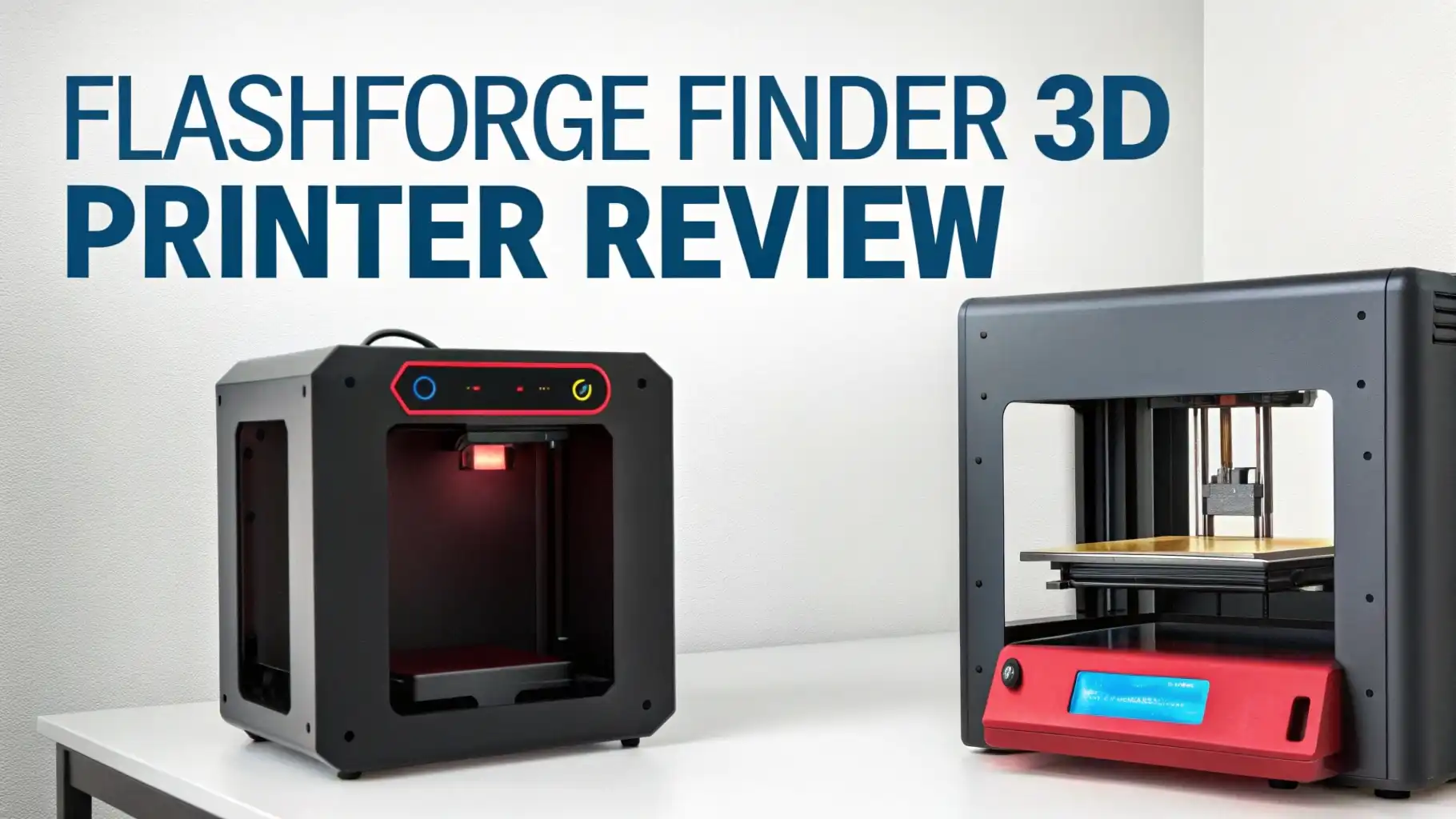
FlashForge Finder 3D Printer Review: Your Complete Guide
Are you ready to jump into the exciting world of 3D printing? The FlashForge Finder has been turning heads since its release, and people keep asking if this compact printer is worth the investment.
This review takes you through everything you need to know about the FlashForge Finder and its successors, helping you decide if this is the right 3D printer to start your creative journey.
We tested this machine, explored its features, and compared it with alternatives to give you the honest truth.
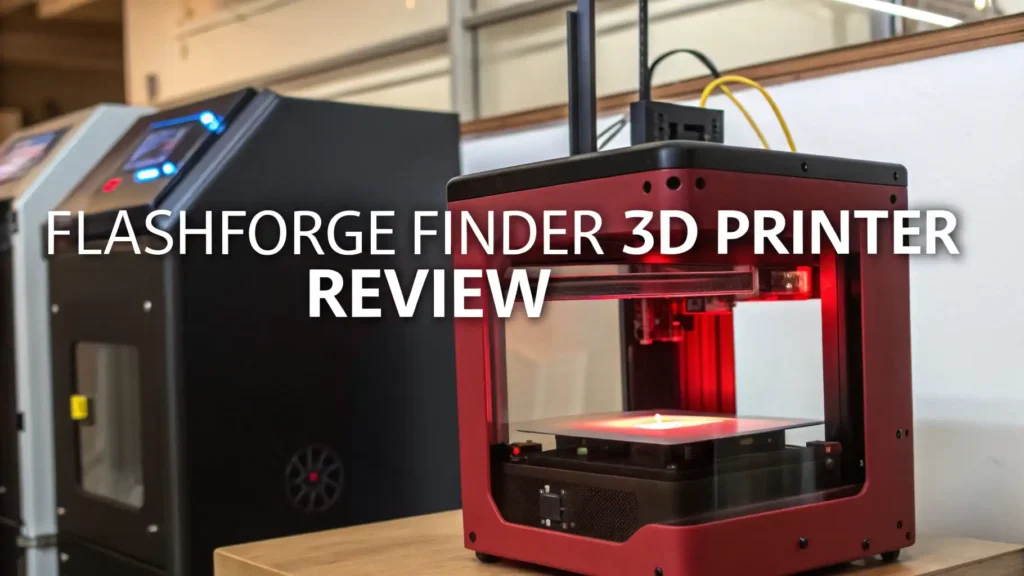
In a Nutshell:
- Safety comes first with the fully enclosed design that protects users from hot parts and makes it perfect for homes, schools, and offices where children might be around.
- Setup takes minutes, not hours because this printer arrives almost ready to print right out of the box with guided touchscreen instructions that walk you through each step.
- Print quality surprises many users as the machine handles fine details smoothly and produces clean surface finishes that rival more expensive models.
- The compact build volume measures 140 x 140 x 140 mm on the original Finder, which works great for small projects but might limit ambitious makers who want larger prints.
- Wi-Fi connectivity adds convenience by letting you send print jobs from your computer or phone without plugging in cables or moving SD cards around.
- The price sits in the sweet spot for beginners who want quality without breaking the bank, typically ranging from $300 to $500 depending on the model and bundle deals.

FlashForge Adventurer 5M 3D Printer
The FlashForge Adventurer 5M represents the next generation of the Finder line with impressive upgrades. This printer delivers 600mm/s high-speed printing that cuts your wait time dramatically compared to older models.
The one-click auto leveling system removes the frustration that trips up many beginners. You get a 280°C direct extruder with a quick-detachable nozzle that swaps out in just three seconds when you need maintenance or want to change nozzle sizes.
The dual-sided PEI coating plate makes print removal easy without damaging your creations. The 220x220x220mm build volume gives you much more space than the original Finder. The CoreXY structure ensures quiet operation at just 44 decibels.
This printer works perfectly for beginners who want modern features without complexity. Users love how the prints just stick during printing and pop off easily when cooled. The enclosed design keeps temperatures stable and protects curious hands from hot parts.
What Makes the FlashForge Finder Special
The FlashForge Finder built its reputation on being user-friendly from day one. The printer features a clean, minimalist design with rounded corners that looks great on any desk or shelf.
The 3.5-inch color touchscreen responds quickly to your touches and displays clear menus that guide you through settings.
The fully enclosed frame serves multiple purposes beyond safety – it reduces noise significantly, maintains consistent temperatures for better print quality, and contains any odors from melting plastic.
FlashForge designed this printer specifically for education and home use. The company focused on removing barriers that stop people from trying 3D printing. No assembly required means you unbox it, level the bed (which takes about five minutes with the guided process), and start your first print.
The overhead LED light illuminates your prints so you can watch the magic happen without straining your eyes. The removable build plate feature makes print removal much easier than scraping prints off a fixed bed.
Unpacking and Setting Up Your FlashForge Finder
Opening the box reveals a well-packaged printer that survived shipping without damage in most cases. You find the printer body, power cable, USB cable, sample PLA filament spool, build plate, tools, and a quick start guide.
The setup process takes about 15 minutes for most users, even complete beginners. You remove protective foam and tape, place the printer on a stable surface, install the build plate, and load filament following the touchscreen prompts.
The guided leveling procedure walks you through adjusting the four corner screws until the nozzle sits at the perfect height. Most users get successful first prints without tweaking settings or watching hours of tutorial videos.
The printer comes preloaded with test models you can print immediately. FlashForge includes their FlashPrint software on a USB drive, though you can download the latest version from their website. The software slices your 3D models into printer instructions with beginner-friendly presets that work great right away.
Top 3 Alternatives for FlashForge Finder


Print Quality: What Can You Really Expect
The FlashForge Finder produces surprisingly good prints for its price range. The machine handles layer resolutions from 100 to 400 microns, with 200 microns being the sweet spot for most projects.
Fine details come through clearly on miniatures, jewelry prototypes, and decorative objects. Surface finish quality impresses with smooth sides that need minimal sanding for painted projects. The 0.4mm nozzle diameter works well for general printing.
Print speed reaches 100mm/s maximum, though printing slower at 40-60mm/s often produces better results for detailed work. The printer handles overhangs up to 45 degrees without support material in most cases.
Bridging performance works adequately for small gaps but struggles with spans over 20mm. Bed adhesion proves reliable when you apply the included build surface sticker correctly and clean it between prints.
Materials: What Filaments Work Best
The original FlashForge Finder works primarily with PLA filament, the most beginner-friendly material available. PLA prints at lower temperatures, produces minimal odor, and requires no heated bed.
The 1.75mm filament diameter is standard and widely available. Users report success with various PLA brands beyond FlashForge’s own filament. PLA comes in countless colors and even specialty versions with wood, metal, or glow-in-the-dark particles mixed in.
The newer Adventurer models expand material compatibility significantly. The 280-300°C high-temperature nozzle handles PETG, ABS, TPU, and even carbon fiber-filled filaments. PETG offers more durability and heat resistance than PLA while remaining fairly easy to print.
TPU creates flexible prints perfect for phone cases or custom grips. ABS requires the enclosed chamber to prevent warping from temperature fluctuations. Most users stick with PLA for learning and switch to specialty materials only when projects demand specific properties.
Software and Connectivity Options
FlashForge provides FlashPrint slicer software that balances simplicity with useful features. The interface displays your model clearly in 3D, lets you rotate and scale it easily, and shows the estimated print time and filament usage.
Beginners appreciate the one-click Expert Mode button that reveals advanced settings without overwhelming the basic interface. The software updates regularly with bug fixes and new features.
Connectivity gives you three solid options. USB cable connection works perfectly when you want hands-on control and can watch your print. The USB port accepts flash drives for untethered printing once you slice your model.
Wi-Fi connectivity stands out as the most convenient option – you connect the printer to your home network once, then send print jobs from anywhere in your house. Some models support cloud printing through FlashCloud, letting you start prints from your phone while away from home.
Maintenance and Long-Term Reliability
FlashForge Finder requires minimal maintenance compared to more complex printers. Regular cleaning keeps it running smoothly – wipe the build plate with isopropyl alcohol before each print, remove dust from the fan vents monthly, and check that the filament path stays clear.
The nozzle rarely clogs when you use quality filament and print at appropriate temperatures. If clogging occurs, the cold pull method or the included needle tool clears it quickly.
Reliability proves solid based on user reports from schools and makerspaces running these printers daily. The simple design with fewer moving parts means less can break. Common issues include worn build surface stickers that need replacement every few months and occasional Wi-Fi connection hiccups that restart fixes.
FlashForge support responds reasonably well to questions, though some users report delays. The active user community provides helpful troubleshooting advice and creative solutions to problems.
Who Should Buy the FlashForge Finder
Absolute beginners find this printer almost perfect for learning 3D printing basics without frustration. Teachers love it because students can operate it safely with minimal supervision.
Parents appreciate the safety features and quiet operation that allows printing without disrupting the household. Hobbyists who print small decorative items, miniatures, or prototype parts get excellent value.
This printer might not suit you if you plan to print large objects regularly, need to work with engineering-grade materials, or want to tinker extensively with settings and hardware modifications.
Serious makers who print daily might outgrow its capabilities within months. The small build volume limits architectural models, cosplay props, or anything requiring pieces larger than 5.5 inches per side.
Pros and Cons: The Honest Truth
The biggest advantages include the plug-and-play setup that gets you printing fast, the fully enclosed design that adds safety and stability, quiet operation around 50 decibels that won’t drive you crazy, the reliable auto-leveling on newer models, excellent print quality for the price, and the beginner-friendly software that doesn’t require engineering knowledge. The touchscreen interface responds smoothly and displays information clearly.
The drawbacks you should consider include the relatively small build volume that restricts project size, limited material compatibility on the original Finder model, proprietary filament cartridges on some versions that cost more, occasional Wi-Fi connectivity issues that require router restarts, the fixed nozzle on older models that prevents easy upgrades, and somewhat limited community compared to Creality or Prusa printers. Print speed lags behind the latest generation budget printers hitting 300mm/s or faster.
How Does It Compare to Competitors
The Creality Ender 3 series offers larger build volume and costs less but requires assembly and more hands-on tweaking. Ender printers teach you more about 3D printing mechanics but frustrate users who just want to print.
The Anycubic Kobra series provides similar ease of use with larger print areas and newer features like auto-leveling. The Prusa Mini delivers higher quality but costs significantly more.
FlashForge wins on simplicity and out-of-box experience. Most competitors require assembly, manual bed leveling, and significant troubleshooting before your first successful print. The FlashForge approach removes these barriers but limits customization.
Consider your priorities – if you want to learn printer mechanics and tinker, choose an Ender. If you want to design and create with minimal technical hassle, FlashForge suits you better. The newer FlashForge Adventurer 5M bridges this gap with better features while maintaining ease of use.
Pricing and Value for Money
The original FlashForge Finder typically sells between $300-400 when available, though newer models have largely replaced it. The Adventurer 5M starts around $279-299 and represents better value with modern features.
The Adventurer 5M Pro with enhanced capabilities costs approximately $379-399. Watch for bundle deals that include extra filament spools or accessories.
The value proposition depends on how much you value convenience versus features. You pay a premium for the ready-to-print experience and safety features. Dollar-for-dollar on specifications alone, DIY printers offer more.
Factor in your time and frustration – if you spend 10 hours assembling and troubleshooting a cheaper printer, that convenience premium suddenly seems reasonable.
Schools and businesses especially benefit from the reduced setup and maintenance time. For home users, consider whether the compact size and quiet operation justify the higher cost per cubic inch of build volume.
Frequently Asked Questions
Can the FlashForge Finder print objects larger than the build volume?
No, you cannot print objects larger than the build volume in one piece. The 140x140x140mm limit on the original Finder or 220x220x220mm on newer models represents the maximum size. However, you can design large objects as multiple pieces that fit within the build volume, then glue or snap them together after printing. Many users successfully create large projects using this approach.
How long does the FlashForge Finder take to print objects?
Print time varies dramatically based on object size, complexity, and your speed settings. A simple keychain takes 30-60 minutes, a phone stand needs 2-4 hours, and a detailed miniature figure requires 4-8 hours. Large prints that fill the build volume can run 12-24 hours or longer. The newer high-speed models cut these times significantly when you enable fast printing modes.
Do I need special computer skills to use this printer?
No special skills are needed. If you can use basic computer programs and follow simple instructions, you can operate this printer successfully. The touchscreen guides you through each step. The slicer software uses straightforward menus and visual displays. Most users print their first successful object within an hour of unboxing.
What happens if the print fails halfway through?
Most FlashForge printers include resume printing features that save your progress if power cuts out. When power returns, you can continue from where it stopped. For other failures like filament running out, you usually cannot resume mid-print. Starting over wastes that time and material. Watching your first few prints helps you spot problems early before wasting hours.
Can I use third-party filament or only FlashForge brand?
You can use any quality 1.75mm PLA filament from any manufacturer on most models. Some FlashForge printers use proprietary cartridges that lock you into their filament, so check your specific model. Third-party filament costs less and offers more color choices. Stick with reputable brands to avoid quality issues that cause clogs or poor prints.
Is the FlashForge Finder loud enough to disturb others?
No, this printer runs remarkably quietly compared to many competitors. The enclosed design dampens sound, and the stepper motors operate smoothly. Most users rate it around 50 decibels, similar to a quiet conversation or refrigerator hum. You can comfortably run it overnight in a bedroom or during work hours in an office without bothering people.
How much does filament cost and how long does it last?
A standard 1kg spool of quality PLA costs $15-25 and prints approximately 300-400 small to medium objects depending on their size and infill settings. One spool might last a casual user several months or a heavy user just weeks. Budget around $20-30 monthly for filament if you print regularly.