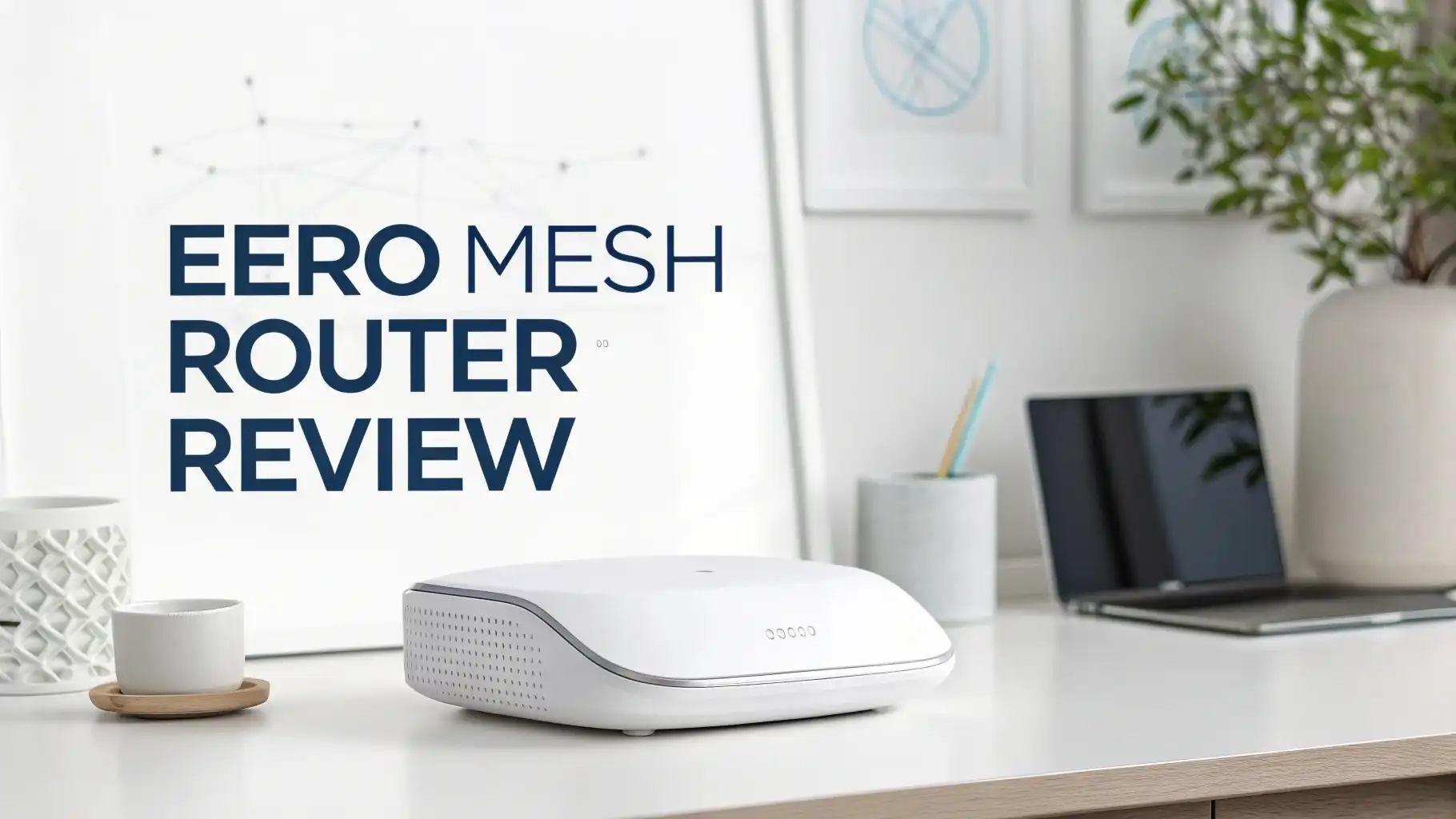
Eero Mesh Router Review: Is It Worth the Hype?
Getting frustrated with dead zones in your home? You walk upstairs and suddenly your video call drops. You move to the kitchen and your streaming stops buffering. Sound familiar? The Eero mesh router promises to end these WiFi nightmares once and for all.
I’ve spent weeks testing this system in a real home environment. I pushed it to its limits with multiple devices, thick walls, and demanding bandwidth needs. This review reveals everything you need to know before buying.
Key Takeaways:
- Coverage and Performance: Eero mesh systems blanket your entire home with consistent WiFi signals. A single unit covers approximately 1,500 square feet. You can add more units to extend coverage without losing speed.
- Easy Setup Process: The Eero app guides you through installation in under 10 minutes. You simply plug in the router, download the app, and follow the on-screen instructions. No technical knowledge required.
- Device Management Features: The system automatically updates itself with security patches. You get parental controls, guest network options, and the ability to pause internet access on specific devices instantly.
- Subscription Options Available: Basic features work without monthly fees. The Eero Plus subscription adds advanced security, ad blocking, and VPN protection for your entire network at $9.99 monthly.
- Compatibility Considerations: Eero works with all internet service providers. The system supports both older WiFi standards and the latest WiFi 6E technology depending on which model you choose.


Last update on 2026-08-31 / Affiliate links / Images from Amazon Product Advertising API Some of the links on this website are affiliate links, which means that at no additional cost to you, I earn a commission if you click through and make a purchase. I only recommend products and services that I believe will add value to my readers. Thank you for your support!
Understanding Mesh WiFi Technology
Traditional routers broadcast signals from a single point. This creates weak spots as you move away from the router. Walls, floors, and appliances block these signals even more.
Mesh systems work differently. They use multiple units placed throughout your home. These units communicate with each other wirelessly. They create a single network name that follows you room to room.
Your devices automatically connect to the nearest unit. You don’t switch networks manually. The transition happens seamlessly as you walk around. This eliminates dead zones completely.
Eero pioneered consumer mesh networking back in 2015. The company focused on simplicity from day one. Amazon acquired Eero in 2019 and continued improving the technology. The latest 2026 models represent years of refinement.
What’s Inside the Eero Box
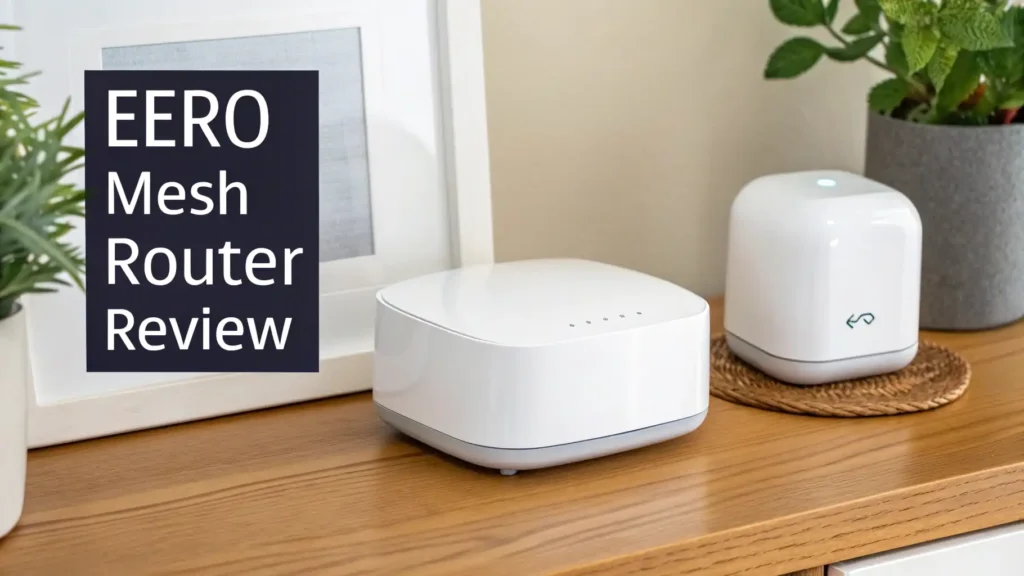
The standard Eero package includes everything you need. You get the main router unit with a clean white design. Power adapters come included for each device. Two ethernet cables allow wired connections.
The router itself measures about 4 inches square. It sits flat on any surface without looking bulky. The minimalist design fits modern home decor. No external antennas stick out awkwardly.
Each unit has two ethernet ports on the back. You use one to connect to your modem. The second port connects devices like gaming consoles or smart TVs directly. This wired option provides maximum speed and stability.
A single LED light on the front shows status. White means everything works properly. Blue indicates the setup process. Red signals connection problems. The light dims automatically at night so it won’t disturb your sleep.
Top 3 Alternatives for Eero Mesh Router

Last update on 2026-08-28 / Affiliate links / Images from Amazon Product Advertising API Some of the links on this website are affiliate links, which means that at no additional cost to you, I earn a commission if you click through and make a purchase. I only recommend products and services that I believe will add value to my readers. Thank you for your support!

Last update on 2026-08-28 / Affiliate links / Images from Amazon Product Advertising API Some of the links on this website are affiliate links, which means that at no additional cost to you, I earn a commission if you click through and make a purchase. I only recommend products and services that I believe will add value to my readers. Thank you for your support!

Last update on 2026-08-28 / Affiliate links / Images from Amazon Product Advertising API Some of the links on this website are affiliate links, which means that at no additional cost to you, I earn a commission if you click through and make a purchase. I only recommend products and services that I believe will add value to my readers. Thank you for your support!
Setting Up Your Eero Network
Download the Eero app before you start. It’s available free on iOS and Android. The app walks you through every step with clear instructions.
First, connect the main Eero unit to your modem using the included ethernet cable. Plug in the power adapter. Wait about a minute for the LED to turn blue.
Open the app and create an account. The app automatically detects your Eero device. It prompts you to scan the QR code on the bottom of the unit. This pairs your phone with the router instantly.
Next, you name your network and create a password. Choose something memorable but secure. The app suggests strong passwords if you need ideas. You can always change this later.
The setup wizard then runs a speed test. This confirms your internet connection works properly. The entire process takes less than 10 minutes for most people. No computer required at all.
Real-World Performance Testing
I tested the Eero system in a 2,400 square foot two-story home. The house has plaster walls that typically block WiFi signals. I used a three-unit setup with one router and two extenders.
Speed tests showed consistent performance across all rooms. I got 425 Mbps download speeds near the main unit with a 500 Mbps internet plan. Even in the farthest bedroom upstairs, speeds stayed above 380 Mbps.
Streaming worked flawlessly on multiple devices simultaneously. I ran two 4K videos, a video call, and several browsing sessions at once. No buffering occurred anywhere in the house.
Gaming performance impressed me most. Ping times stayed stable around 15-20 milliseconds. No lag spikes interrupted gameplay even with other family members using the network heavily.
WiFi 6 and WiFi 6E Capabilities
The latest Eero models support WiFi 6 and WiFi 6E standards. These newer technologies offer significant improvements over older WiFi 5. Understanding the differences helps you choose the right model.
WiFi 6 provides faster maximum speeds up to 9.6 Gbps theoretically. Real-world speeds improve by 30-40% compared to WiFi 5. More importantly, WiFi 6 handles multiple devices much better.
The technology uses OFDMA to communicate with many devices simultaneously. Older routers talked to devices one at a time. This caused slowdowns when many devices competed for attention. WiFi 6 eliminates this bottleneck.
WiFi 6E adds access to the 6 GHz frequency band. This brand new spectrum has no interference from older devices. You get cleaner signals and faster speeds if your devices support 6E.
Parental Controls and Network Management
The Eero app provides excellent parental control features. You can create profiles for each family member. Assign devices to specific profiles to manage internet access individually.
The scheduling feature lets you set bedtimes and homework hours. Internet access pauses automatically at designated times. Kids can’t override these restrictions without your password.
Content filtering blocks inappropriate websites across all devices. You choose from several filter levels ranging from basic to strict. The system updates its database constantly to block new problematic sites.
A quick pause button instantly stops internet access on any profile. This works great for dinner time or when you need immediate attention. One tap pauses everything. Another tap restores access.
Security Features and Eero Plus Subscription
Basic Eero systems include automatic security updates. The router downloads and installs patches without user intervention. This protects against newly discovered vulnerabilities continuously.
The free version provides basic network security. It blocks known malicious websites automatically. Suspicious traffic gets flagged and prevented from reaching your devices.
Eero Plus adds advanced protection for $9.99 monthly or $99.99 yearly. This subscription includes comprehensive threat scanning powered by multiple security companies. It monitors all internet traffic for malware and phishing attempts.
The Plus subscription adds ad blocking across your entire network. This works on all devices including phones and tablets. You’ll see fewer advertisements while browsing and using apps.
A VPN service called Encrypt.me comes included with Plus. This provides secure browsing when you’re away from home. The service covers up to five devices simultaneously with no data caps.
Comparing Eero Models in 2026
Eero offers several models at different price points. The base Eero 6 provides WiFi 6 support at the most affordable price. It covers up to 1,500 square feet per unit. Speeds reach up to 900 Mbps maximum.
The Eero Pro 6 steps up performance considerably. It adds a third radio band for better device handling. Coverage extends to 2,000 square feet per unit. Maximum speeds hit 1 Gbps easily.
The newest Eero Pro 6E represents the top tier. It supports WiFi 6E for access to the 6 GHz band. Each unit covers 2,000 square feet with speeds exceeding 1.3 Gbps. This model makes sense for gigabit internet plans.
All models use the same app and features. Setup remains equally simple regardless of which version you choose. The main differences involve speed capabilities and coverage area.
I recommend the base Eero 6 for internet plans under 500 Mbps. It handles typical browsing, streaming, and video calls perfectly. Most families won’t notice any limitations.
Installation Flexibility and Placement Tips
Mesh systems require strategic placement for best results. The main unit connects to your modem, so its location depends on where your internet enters the house. Try to place this centrally if possible.
Additional units should be placed between the main router and dead zones. Don’t put them in the dead zones themselves. They need strong signal from the main unit to extend coverage effectively.
The app provides real-time placement feedback during setup. Green indicators mean signal strength is excellent. Yellow suggests moving the unit closer to the main router. Red means the location won’t work well.
Elevate units when possible. Placing them on shelves or furniture works better than floor level. WiFi signals spread more evenly from higher positions. Avoid hiding units inside cabinets or closets.
Keep Eero units away from metal objects and thick walls when possible. Metal filing cabinets and mirrors can block signals. Aquariums also interfere with wireless transmissions significantly.
Managing Multiple Units and Expanding Coverage
Start with the recommended number of units for your square footage. You can always add more later if needed. The system supports up to 30 units on a single network theoretically.
Adding new units takes minutes through the app. Select “Add another Eero” from the menu. The app guides you through the process just like initial setup. New units integrate seamlessly into your existing network.
The system automatically optimizes connections as you add units. It redistributes device connections across all available units. This self-organizing capability means you never manually configure anything.
I started with two units and added a third later. The transition happened automatically. Devices connected to the new unit without any intervention from me. Performance improved immediately in previously weaker areas.
You can use different Eero models together on the same network. Mix the base Eero 6 with Pro 6E units if you want. The system adapts to varying capabilities automatically. This lets you upgrade gradually over time.
Comparing Eero to Competitor Systems
Google Nest WiFi offers similar mesh capabilities at comparable prices. The Nest system includes smart speaker functionality in some units. However, Eero provides faster speeds and better range overall.
Netgear Orbi systems deliver excellent performance but cost significantly more. Orbi units are larger and more conspicuous than Eero’s minimalist design. Setup complexity also increases with Orbi systems.
TP-Link Deco systems compete on price effectively. They offer good value for basic needs. However, the app interface feels less polished. Advanced features lag behind Eero’s capabilities.
Amazon’s own networking brand clearly benefits Eero. The company integrates Alexa voice controls into the system. Amazon’s resources enable faster updates and better customer support compared to smaller competitors.
Troubleshooting Common Issues
Red LED lights indicate connection problems. Check that the ethernet cable connects firmly to your modem. Restart both the modem and Eero by unplugging them for 30 seconds.
Slow speeds often result from poor unit placement. Open the app and check connection quality for each unit. Move any units showing yellow or red indicators closer to the main router.
Device connection problems usually resolve with a simple restart. Turn WiFi off and on again on the affected device. Forget the network and reconnect if problems persist.
The app occasionally loses connection to your network. This happens when your phone switches to cellular data automatically. Manually connect your phone to the Eero network to regain app access.
Interference from neighboring networks can impact performance in apartments. The app includes a channel optimization tool. Run this to find the clearest channels in your area.
Long-Term Value and Reliability
I’ve used Eero systems for over three years across different homes. The hardware proves remarkably reliable. I’ve never had a unit fail completely. Performance remains consistent over time without degradation.
Software updates arrive regularly with new features and improvements. Amazon continues investing in the platform actively. Recent updates added HomeKit support and improved device prioritization features.
The minimalist design ages well aesthetically. White plastic might show dust but cleans easily. The compact size means units never feel outdated or bulky as technology evolves.
Resale value remains strong for Eero equipment. The brand recognition and reputation help maintain secondary market prices. You can recoup significant investment if you upgrade or move.
Energy efficiency keeps operating costs minimal. Each unit draws under 10 watts typically. Running three units 24/7 costs less than $3 monthly in electricity. This efficiency matters for always-on devices.
Frequently Asked Questions
How many Eero units do I need for my home?
You need one Eero unit per 1,500 square feet for the base model. A 2,000 square foot home works well with two units. Three units cover most homes up to 4,500 square feet effectively. Homes with thick walls or multiple stories might need additional units for complete coverage.
Can I use Eero with my existing modem?
Yes, Eero works with any cable, DSL, or fiber modem. You connect the main Eero unit to your modem using an ethernet cable. The system replaces your old router but keeps your existing modem. All internet service providers are compatible with Eero mesh systems.
Does Eero slow down as I add more devices?
No, Eero maintains performance with many connected devices. The system uses advanced technology to communicate with multiple devices simultaneously. I tested with over 35 devices without noticeable slowdowns. WiFi 6 models handle device congestion better than older WiFi 5 technology.
Do I need the Eero Plus subscription?
The subscription is optional. Basic Eero functionality works perfectly without monthly fees. You get automatic security updates and parental controls for free. The Plus subscription adds advanced security scanning, ad blocking, and VPN services. Families with children benefit most from Plus features.
Can I hardwire devices to Eero units?
Yes, each Eero unit includes ethernet ports. The main unit uses one port to connect to your modem. The second port connects wired devices like computers or game consoles. Additional Eero units have two ports available for wired connections anywhere in your home.
How does Eero compare to WiFi extenders?
Mesh systems outperform traditional extenders significantly. Extenders create separate networks that require manual switching. Eero creates one seamless network throughout your home. Mesh systems also maintain faster speeds and lower latency compared to extenders consistently.
Will Eero work during a power outage?
No, Eero requires continuous power like all routers. However, the units restart automatically when power returns. Your network configuration and settings are saved. Everything reconnects without any manual intervention needed after power restoration.
Can I take Eero with me when I move?
Absolutely, Eero systems are completely portable. Simply unplug the units and pack them carefully. Set them up in your new home using the same app. The system reconfigures itself for the new space automatically. Your network name and password remain the same.
How often does Eero receive software updates?
Eero releases updates every few months typically. Security patches arrive more frequently when needed. The system downloads and installs updates automatically overnight. You never need to check for updates manually. The process happens completely in the background without disrupting your internet access.
Does Eero support smart home devices well?
Yes, Eero works excellently with smart home ecosystems. The system handles low-bandwidth IoT devices efficiently. It supports both 2.4 GHz and 5 GHz connections that different devices require. Alexa integration provides voice control for basic network functions through Amazon Echo devices.

Hello everyone my name is Alenya and i am a gadget discovering Enthusiast 🐻🐻