Canon PIXMA TS3722 Review 2026: Is This Worth It?
Are you searching for a budget printer that prints, copies, and scans without breaking the bank? The Canon PIXMA TS3722 has been a popular pick among home users for a good reason. It costs less than $50, connects wirelessly to your devices, and handles daily printing tasks with ease.
But is it the right choice for you in 2026? This review covers everything you need to know. We break down the print quality, wireless features, ink costs, setup process, and real user experiences.
By the end, you will know if this printer fits your home or small office needs. Let’s dive in and see what the Canon PIXMA TS3722 has to offer.
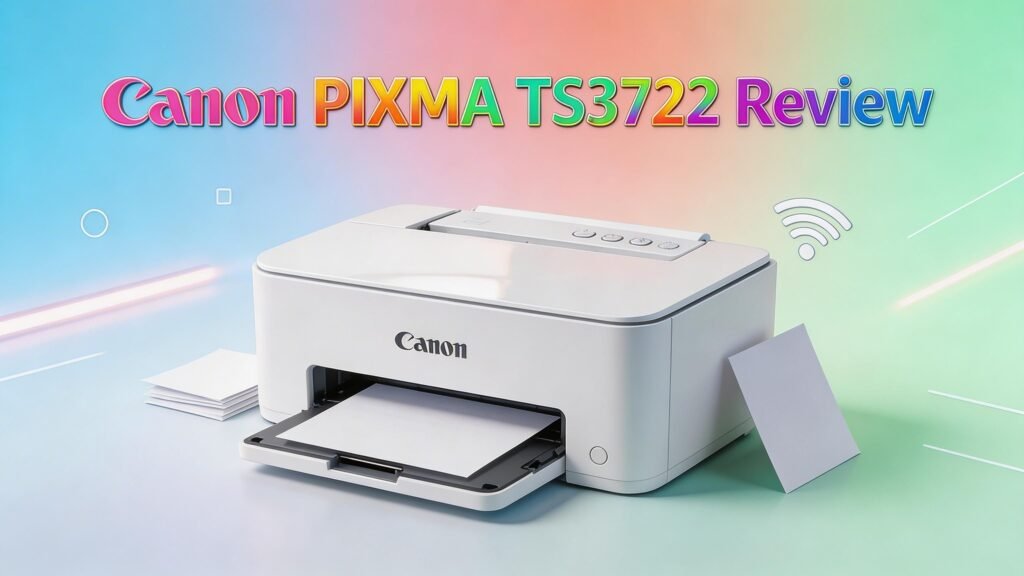
In a Nutshell:
- The Canon PIXMA TS3722 is a 3-in-1 all-in-one printer that offers print, copy, and scan functions at an entry-level price point, typically under $50. It is one of the most affordable wireless printers you can buy right now.
- Print speed sits at 7.7 pages per minute for black and 4 pages per minute for color. These speeds are adequate for light home use, but they may feel slow for anyone with heavy printing demands.
- It supports wireless printing from smartphones and tablets through the Canon PRINT app, Apple AirPrint, and Mopria Print Service. You can also connect it to a computer through a USB cable.
- The ink system uses PG-275 and CL-276 cartridges, and the cost per page runs about 16 cents. This makes it affordable upfront, but ongoing ink costs can add up with frequent use.
- The maximum print resolution reaches 4800 x 1200 dpi, which produces sharp text and decent photos for casual printing. Scanning resolution goes up to 600 x 1200 dpi optical.
- Its compact size (17.2 x 12.9 x 5.8 inches) and 60-sheet rear paper tray make it easy to place on a desk or shelf. The 1.5-inch segment LCD display keeps the design simple and straightforward.

Last update on 2026-08-01 / Affiliate links / Images from Amazon Product Advertising API Some of the links on this website are affiliate links, which means that at no additional cost to you, I earn a commission if you click through and make a purchase. I only recommend products and services that I believe will add value to my readers. Thank you for your support!
Canon PIXMA TS3722 Overview
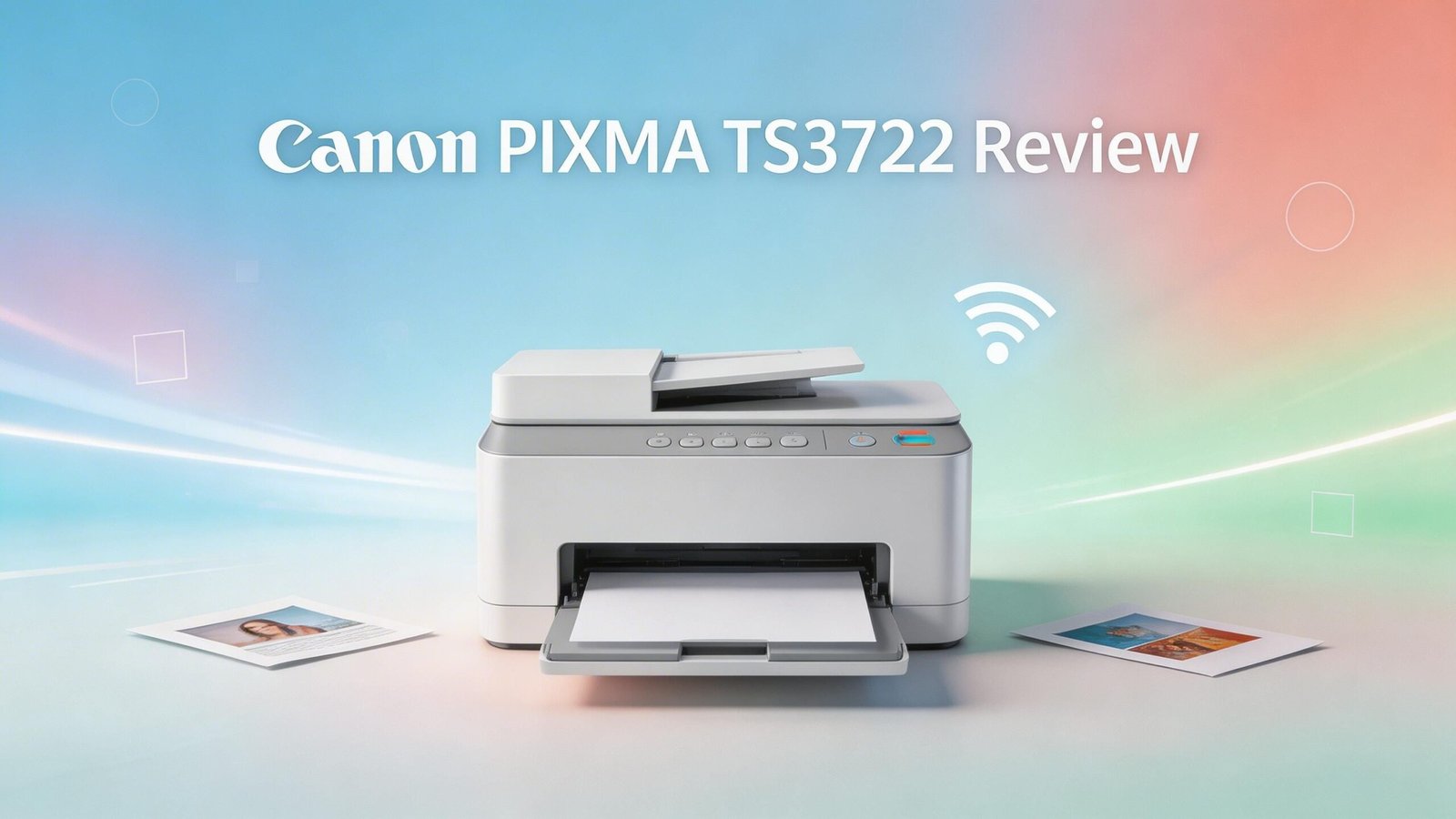
The Canon PIXMA TS3722 is a wireless all-in-one inkjet printer built for home users. It handles three core tasks: printing, copying, and scanning. Canon designed this printer to be simple and accessible for people who need basic document and photo output.
This printer uses Canon’s 2-Cartridge FINE Hybrid Ink System. The system combines dye and pigment ink to produce clean text and colorful images. The hybrid approach helps deliver sharp black text on documents and smooth color gradients on photos.
The TS3722 runs on a 1.5-inch segment LCD display. This screen shows basic status information like ink levels and Wi-Fi connection status. It does not have a touchscreen, but the physical buttons work well for simple operations.
Canon offers this printer in both black and white color options. It weighs about 7.5 pounds and sits easily on a small desk. The lightweight build also makes it easy to move from room to room if needed.
Wireless connectivity is the main connection method. The printer connects to your home Wi-Fi network and allows printing from multiple devices. You can also use a USB cable for a direct connection to one computer.
Print Quality and Performance
The Canon PIXMA TS3722 delivers a maximum color print resolution of 4800 x 1200 dpi. This resolution produces clear text documents and acceptable photo prints for everyday use. Letters, school assignments, and basic office documents look clean and readable.
Color output is decent for the price range. The hybrid ink system blends pigment black ink for text and dye ink for color graphics. This combination gives you dark, sharp characters on plain paper and smooth color fills on photo paper.
However, print speed is not the strongest feature of this printer. It prints about 7.7 images per minute in black and white. Color printing drops to about 4 images per minute. A 5-page document takes roughly 42 seconds to complete.
For casual photo printing, the TS3722 can print borderless photos up to 5 x 7 inches. The results look good on Canon photo paper. You should not expect professional photo lab quality, but the output works well for personal use.
Text quality is average compared to other printers in its class. Consumer Reports noted that text quality falls slightly below most printers in their tests. If you print mostly text-heavy documents, you may notice slightly less crisp edges on small fonts.
Design and Build Quality
The Canon PIXMA TS3722 has a compact and lightweight design that fits well in small spaces. It measures 17.2 inches wide, 12.9 inches deep, and 5.8 inches tall. These dimensions make it one of the smaller all-in-one printers available.
The printer weighs approximately 7.5 pounds. This light weight means you can easily carry it from one room to another. It also makes shelf placement simple, as most standard shelves can support the weight without any issue.
The 60-sheet rear paper tray sits at the back of the printer. You pull it up and extend it to load paper. This design saves front desk space but requires a few inches of clearance behind the printer.
Canon kept the control panel minimal on purpose. The 1.5-inch segment LCD display shows essential information. Physical buttons surround the display for functions like power, Wi-Fi setup, copy, and scan. The layout is intuitive and easy to learn.
The flatbed scanner lid sits on top of the unit. It lifts to reveal the scanning glass, which can handle standard letter-size documents. The lid closes flush and keeps the overall profile slim. Build materials are standard plastic, which feels adequate for the price point.
Top 3 Alternatives for Canon PIXMA TS3722


Last update on 2026-07-04 / Affiliate links / Images from Amazon Product Advertising API Some of the links on this website are affiliate links, which means that at no additional cost to you, I earn a commission if you click through and make a purchase. I only recommend products and services that I believe will add value to my readers. Thank you for your support!

Last update on 2026-07-29 / Affiliate links / Images from Amazon Product Advertising API Some of the links on this website are affiliate links, which means that at no additional cost to you, I earn a commission if you click through and make a purchase. I only recommend products and services that I believe will add value to my readers. Thank you for your support!

Last update on 2026-08-01 / Affiliate links / Images from Amazon Product Advertising API Some of the links on this website are affiliate links, which means that at no additional cost to you, I earn a commission if you click through and make a purchase. I only recommend products and services that I believe will add value to my readers. Thank you for your support!
Wireless Connectivity and Mobile Printing
The Canon PIXMA TS3722 connects to your home Wi-Fi network using 2.4 GHz wireless. Once connected, every device on your network can send print jobs to it. This eliminates the need for cables running across your room.
Apple AirPrint lets iPhone and iPad users print without installing extra software. You simply select the printer from the print menu, and the document goes straight to the TS3722. Android users can use Mopria Print Service for the same experience.
The Canon PRINT Inkjet/SELPHY app offers the most features for mobile printing. You can print photos from your phone gallery, scan documents to your device, and check ink levels. The app is free to download on both iOS and Android.
Canon also supports printing from cloud services. You can print files stored on Google Drive, Dropbox, and other cloud platforms through the Canon PRINT app. This feature saves time if you store documents online.
Wi-Fi Direct is another option for wireless printing. It creates a direct connection between your device and the printer without needing a router. This is useful if your Wi-Fi network is down or if you want a guest to print quickly.
Setup through the Canon PRINT app takes just a few minutes. The app walks you through each step with clear instructions. Most users report a smooth and fast wireless setup experience.
Ink System and Cost Per Page
The Canon PIXMA TS3722 uses a 2-cartridge system with the PG-275 (black) and CL-276 (color) ink cartridges. Canon also offers XL versions of both cartridges. The XL cartridges hold more ink and lower the cost per page.
Standard PG-275 black ink costs around $18.99 and yields about 180 pages. The standard CL-276 color cartridge costs about $22.99 and yields roughly 180 color pages. This brings the estimated cost per black page to about 10.5 cents.
The XL cartridges offer better value for frequent printers. The PG-275XL yields approximately 400 pages at around $38.99. The CL-276XL yields about 300 color pages at around $42.99. Switching to XL cartridges can cut your per-page cost significantly.
One important note: the color cartridge is a tri-color unit. This means all three colors (cyan, magenta, yellow) live in one cartridge. If one color runs out before the others, you must replace the entire cartridge. This can lead to some wasted ink.
Scanner and Copy Functions
The Canon PIXMA TS3722 includes a flatbed CIS scanner with an optical resolution of 600 x 1200 dpi. This resolution works well for scanning documents, receipts, and basic photos. The scanned files come out clear enough for digital storage and email.
Scanning is available through the Canon PRINT app on your phone or through IJ Scan Utility on your computer. The app lets you scan directly to your mobile device. You can save scans as PDF or JPEG files depending on your needs.
The copy function operates independently from a computer. You place the document on the scanner glass, press the copy button, and the printer produces a copy. The TS3722 can make up to 20 copies at a time.
Copy quality mirrors the print quality at about 600 x 600 dpi. This is enough for standard document copies. Fine details in photos or graphics may lose some clarity in copies, but text documents reproduce well.
One limitation is the lack of an automatic document feeder (ADF). You must place each page manually on the scanner glass. This makes multi-page scanning slow and tedious. If you scan or copy multi-page documents often, look for a printer with an ADF.
The scanner lid accommodates documents up to letter size (8.5 x 11 inches). It does not support legal-size papers. The flatbed design works for scanning books, magazines, and other thick items that would not feed through an ADF.
Paper Handling and Media Support
The Canon PIXMA TS3722 uses a rear-loading paper tray that holds up to 60 sheets of plain paper. You pull the tray up from the back of the printer and extend the paper support. This design keeps the front of the printer clean and compact.
The printer accepts a wide range of paper types. You can load plain paper, photo paper (glossy and matte), envelopes, and high-resolution paper. Canon states the printer can handle paper up to 275 pounds basis weight, which is much heavier than typical home printers support.
Supported paper sizes include Letter, Legal, 4 x 6, 5 x 7, and 8 x 10 inches. You can also print on custom sizes within the maximum range of 8.5 x 26.6 inches. The custom size option is helpful for printing banners or long-format documents.
The 60-sheet capacity is on the lower side. If you print frequently, you will refill the tray often. Most mid-range printers offer 100 to 150 sheet trays. This small tray capacity is a trade-off for the printer’s compact size.
Setup and Installation Process
Setting up the Canon PIXMA TS3722 takes about 10 to 15 minutes for most users. Canon includes a quick start guide in the box that walks you through each step. The process covers unboxing, ink installation, paper loading, and wireless connection.
You start by removing all packaging tape and protective materials from the printer. Open the front cover to access the ink cartridge slots. Insert the included PG-275 and CL-276 starter cartridges until they click into place.
The alignment process runs automatically after you install the ink cartridges and load paper. The printer prints a test page to calibrate the print head. This step takes a couple of minutes and does not require any user input.
For wireless setup, you use the Canon PRINT app on your smartphone. The app detects the printer and guides you through connecting it to your Wi-Fi network. Most users report this process is quick and straightforward.
Software and App Experience
Canon provides the Canon PRINT Inkjet/SELPHY app as the primary mobile printing and scanning tool. The app is available for both iOS and Android. It handles printing, scanning, ink level monitoring, and basic printer management.
The app interface is clean and easy to follow. You see your printer status on the main screen. Large buttons for Print Photos, Print Documents, and Scan make the main functions accessible in one tap. The app also lets you print directly from cloud storage accounts.
On desktop computers, Canon offers IJ Scan Utility and My Printer software. IJ Scan Utility controls the scanning process and lets you adjust resolution, file type, and color settings. My Printer helps with troubleshooting and checking printer status.
The TS3722 works with Windows 10, Windows 11, macOS, and Chrome OS. This broad compatibility means most computer users can set it up without issues. Linux support is limited and may require third-party drivers.
Canon PIXMA TS3722 vs. Other Budget Printers
The Canon PIXMA TS3722 competes directly with the HP DeskJet 2855e and Epson Expression Home XP-4200. Each printer has distinct strengths that may match different user needs.
Compared to the HP DeskJet 2855e, the Canon TS3722 offers a slightly faster black print speed (7.7 ipm vs. 7.5 ipm). However, the HP model prints color faster at 5.5 ipm vs. the Canon’s 4 ipm. HP also bundles Instant Ink subscription options that can lower ink costs for regular users.
The Epson Expression Home XP-4200 adds features the TS3722 lacks. It includes automatic duplex printing, a 2.4-inch color display, and individual color ink cartridges. The Epson costs more upfront, but individual cartridges mean you replace only the empty color instead of the whole tri-color unit.
Where the Canon wins is price. The TS3722 typically sells for under $50, often as low as $34 during sales. Both the HP and Epson alternatives usually cost between $60 and $100. The Canon delivers the best value for users who print occasionally.
Who Should Buy the Canon PIXMA TS3722?
The Canon PIXMA TS3722 fits a specific type of user best. Students benefit from its low purchase price and ability to print assignments, study notes, and school forms. The wireless feature lets them print from a laptop or phone across the room.
Families with light printing needs will appreciate the simplicity. Printing coupons, coloring pages, recipes, and the occasional photo becomes easy. The compact size means it does not take up much space in a home office or kitchen counter.
Remote workers who print occasionally can use this printer for basic document output. Contracts, shipping labels, and reference documents print without issues. The scan function also helps digitize signed documents.
This printer is not ideal for heavy-duty printing. Anyone who prints more than 100 pages per week should look at a printer with a larger paper tray, automatic duplexing, and lower ink costs per page. The TS3722 would run through ink and paper quickly under heavy use.
Pros and Cons of the Canon PIXMA TS3722
The biggest advantage of the Canon PIXMA TS3722 is its ultra-low purchase price. You get a fully functional all-in-one printer for under $50. This makes it one of the cheapest wireless printers on the market.
Wireless connectivity and mobile printing support add real convenience. You can print from any room in your house without plugging in a single cable. The Canon PRINT app, AirPrint, and Mopria cover all major device platforms.
Setup is fast and beginner-friendly. Even users with no technical experience can get the printer running in about 10 minutes. Canon’s app-based setup removes the guesswork from connecting to Wi-Fi.
On the downside, print speed is slow compared to printers in higher price ranges. If you need to print large batches, the wait time adds up. The 7.7 ipm for black and 4 ipm for color are below average.
Frequently Asked Questions
Does the Canon PIXMA TS3722 support duplex printing?
No. The Canon PIXMA TS3722 only supports single-sided (simplex) printing. You must flip the paper manually to print on both sides. If automatic duplex printing is important to you, the Epson Expression Home XP-4200 offers this feature at a slightly higher price.
What ink cartridges does the Canon PIXMA TS3722 use?
The Canon PIXMA TS3722 uses the PG-275 black ink cartridge and the CL-276 color ink cartridge. Both are available in standard and XL sizes. The XL versions offer higher page yields and a lower cost per page. Starter cartridges with reduced ink amounts come included in the box.
Can I print from my phone with the Canon PIXMA TS3722?
Yes. You can print from your phone using the Canon PRINT Inkjet/SELPHY app, Apple AirPrint (for iOS), or Mopria Print Service (for Android). The printer connects to your phone through your home Wi-Fi network or through Wi-Fi Direct for a direct connection.
How many pages can the paper tray hold?
The rear paper tray holds up to 60 sheets of plain paper. This capacity is smaller than many competing printers, which typically hold 100 to 150 sheets. You will need to refill the tray more often if you print regularly.
Is the Canon PIXMA TS3722 good for printing photos?
The Canon PIXMA TS3722 can print borderless photos up to 5 x 7 inches on photo paper. The results look decent for personal use, holiday cards, and scrapbooks. It is not a dedicated photo printer and lacks the quality and size options of higher-end models. For frequent photo printing, consider a model with more advanced ink technology.
How do I connect the Canon PIXMA TS3722 to Wi-Fi?
Download the Canon PRINT app on your smartphone. Open the app and follow the on-screen instructions to detect the printer and connect it to your Wi-Fi network. You can also use the printer’s Wi-Fi button to initiate WPS connection if your router supports it. The entire process takes about 5 minutes.
What operating systems are compatible with the Canon PIXMA TS3722?
The Canon PIXMA TS3722 works with Windows 10, Windows 11, macOS, and Chrome OS. Canon provides downloadable drivers on their website for all supported platforms. Linux support is limited and may require additional configuration.

Hello everyone my name is Alenya and i am a gadget discovering Enthusiast 🐻🐻