
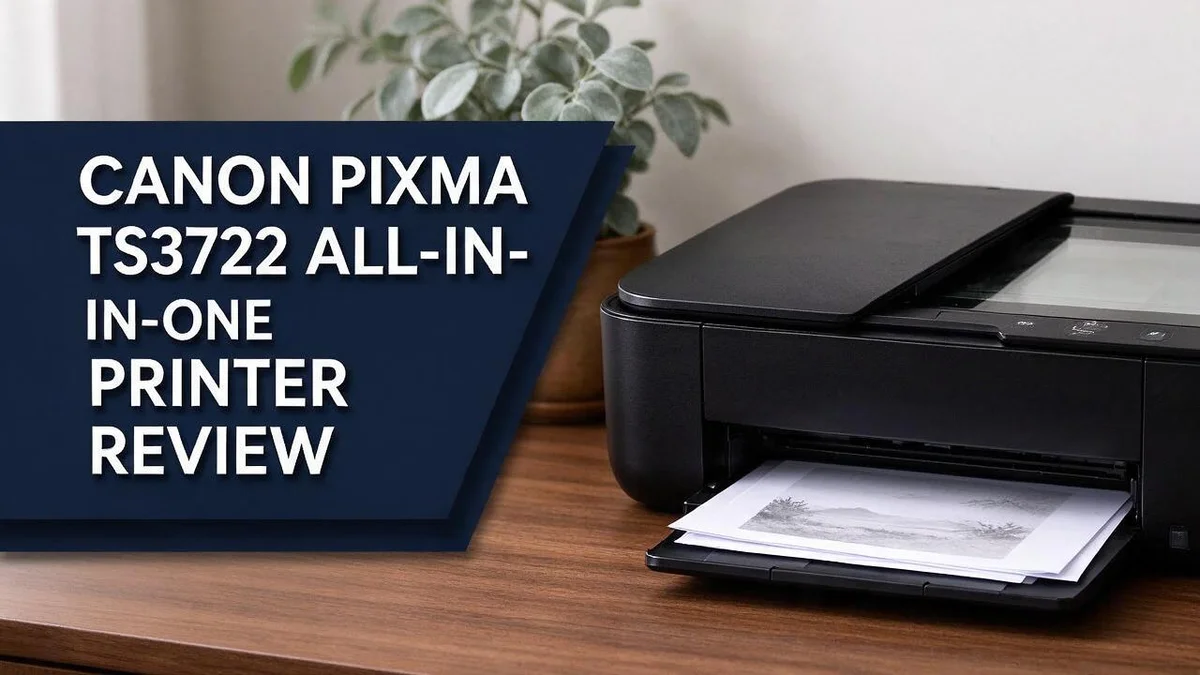
Canon PIXMA TS3722 Review: Is This Printer Worth It?
Looking for a simple printer that handles everyday tasks without fuss? The Canon PIXMA TS3722 could be a strong fit for your home or small office.
This wireless all in one machine prints, copies, and scans documents. It connects over a wireless network, so you can place it almost anywhere in the room.
Setup feels quick and easy. Many users finish the process in minutes by following the on screen prompts.
Mobile printing is also supported. You can send pages from your phone or tablet with just a few taps.
This review covers print quality, daily performance, and key features. You will also see where it shines and where it falls short.
In a Nutshell
-
Dual band Wi-Fi support: The printer connects to both 2.4GHz and 5GHz networks. This gives you more flexibility at home, especially if your router runs both bands.
-
Flexible placement: You can set up the printer away from your computer. It does not need to sit close to the PC. This helps when your desk space is limited or your room layout is tight.
-
Touchscreen display: One listing mentions a touchscreen. If that is accurate, you can check status and move through menus right on the machine without using your computer.
-
Solid scanning detail: The scanner reaches 600×1200 DPI. This level works well for text documents that you want to save as clear digital copies.
-
Single sided printing limit: One listing says the printer prints only one side of each page. Check this before you buy if you often need double sided pages for reports or handouts.
-
Best for home users: This model suits people with light to moderate printing needs. It works well for school work, bills, and everyday household paperwork.
Print Quality and Speed
No products found.
Print quality is the first thing to check. Most buyers want text that looks clean and easy to read. This model fits everyday papers like letters, notes, and school handouts.
Speed shows up in daily use. Short jobs finish without a long wait, even on busy mornings. You spend less time by the tray and more time on your work.
Cartridge life can change your routine. One user reports more prints per cartridge than expected. Fewer ink swaps mean less hassle for busy households.
Keep spare ink nearby. Store a backup cartridge in a drawer. You will never stop in the middle of an important project.
Photos need a different test. Image prints often take longer than text pages. Use plain paper for drafts and glossy paper for final photos.
Print one test page first. This shows whether colors look right on your paper. It saves time and wasted sheets.
Text sharpness stands out for documents. Fine print and small fonts should stay readable. Zoom in on your test page to check the edges.
Settings control speed. Draft mode prints faster but looks lighter. Standard mode balances quality and time for most jobs.
Paper handling affects speed too. Load sheets neatly and avoid overfilling the tray. Jams slow any printer, so clean paper keeps jobs moving.
Batch your jobs for efficiency. Queue several pages at once. The printer handles a short list smoothly, so you finish faster.
Plan for regular checks. Clean the print head when lines appear. A short cleaning cycle keeps output looking fresh.
Think about your daily pattern. Count how many pages you print each week. This helps you judge whether the speed fits your habits.
The bottom line is simple. The TS3722 suits quick home tasks with steady results. Heavy photo work or high office volume may need a different model.
Wireless Setup and Connectivity
Connecting this printer to your network is the first real step. Most people finish it in one sitting, so plan for a short session with your router nearby.
Keep your router close during setup. A strong signal helps the printer find your network on the first try. You can move the printer later once it joins.
Start by powering on the unit. Then follow the prompts on the screen. The steps guide you through choosing your network and entering the password.
Have your network password ready. Typing errors cause most setup delays. Double check capital letters and symbols before you press confirm.
Next, look at which devices need access. Your laptop, phone, and tablet can all share the same printer. Every device must join the same network to see it.
Some homes use a guest network for visitors. Printers placed on a guest network often stay hidden from your other devices. Connect the printer to your main network instead.
Note the printer address from the settings menu. Having it handy helps when a computer cannot find the printer. Write it down in a safe place.
Install the driver on each computer. Drivers link your computer to the printer. Download the latest version from the Canon support site to avoid compatibility problems.
Send a test page right after setup. This confirms the link works from start to finish. If the page prints, your connection is ready for daily use.
If the connection drops, restart the printer and the router. This simple reset fixes many temporary issues. Check that the printer still shows as connected in the device list.
Use the printer name to find it. Your computer shows the printer under its model name. Pick that name when you add the device. Avoid choosing a similar printer from a nearby home.
Family members can print without extra steps once they join the network. Everyone keeps their own device and still uses the same machine.
Good connectivity also depends on updates. Keep the printer firmware current. New updates often improve stability and security on your network.
Setup takes some patience, but it pays off. Once the link works, printing from any room feels simple and easy.
Scanning and Copying Performance
Scanning and copying add real value to this printer. Many home users rely on these tasks more than they expect.
Copying is the easiest task to learn. Place your page on the glass, face down, and press the copy button. The printer gets the job done without a computer.
Keep the glass clean for better results. A smudge or fingerprint can show up as a dark spot on every copy. A soft, dry cloth usually does the trick.
Line up the page with the edges of the glass. A straight copy looks more professional.
Scanning sends a file to your computer or phone. This helps when you need a digital copy of a form, receipt, or letter. Save the file in a folder you can find later.
Choose the right color mode for each job. Black and white works well for text documents. Color suits photos and forms with logos. Black and white also keeps file sizes smaller, which makes sharing easier.
Scanning a book needs extra care. Lay the book flat and avoid pressing the spine too hard. Gentle pressure protects the binding.
Check the first copy before you make a full set. This simple habit saves paper and ink.
Copying a page in a rush is simple. Press the copy button, wait for the page to print, and go. No setup is needed for a quick copy.
Think about your daily routine. Use scanning for paperwork you keep digitally. Use copying for quick backups of school forms or bills. Both features help you stay organized at home.
Scanned files need a clear name. Use dates or short labels, such as tax form 2024. This makes later searches quick.
Scanned documents can also go straight to a folder on your computer. This cuts down on paper clutter at home. Keep a backup of important files on a second drive. A second copy protects your records if a computer fails.
Top 3 Alternatives
HP DeskJet 2755e


Last update on 2026-11-06 / Affiliate links / Images from Amazon Product Advertising API Some of the links on this website are affiliate links, which means that at no additional cost to you, I earn a commission if you click through and make a purchase. I only recommend products and services that I believe will add value to my readers. Thank you for your support!
The HP DeskJet 2755e suits home users who print often. Its compact frame saves room on a crowded desk.
Wireless setup keeps cables off your floor, and printing from a phone takes seconds. It also copies and scans documents with ease. Setup guides on the screen help first-time users get started quickly.
Epson EcoTank ET-2850

Last update on 2026-11-06 / Affiliate links / Images from Amazon Product Advertising API Some of the links on this website are affiliate links, which means that at no additional cost to you, I earn a commission if you click through and make a purchase. I only recommend products and services that I believe will add value to my readers. Thank you for your support!
The Epson EcoTank ET-2850 uses large ink tanks instead of small cartridges. Refilling the tanks is simple and clean.
This design means fewer replacements over time. Many families love the long page yield for busy weeks. The ink bottles come in the box, so you can start right away. Users can also print from a phone with a mobile app.
Brother MFC-J1010DW

Last update on 2026-11-06 / Affiliate links / Images from Amazon Product Advertising API Some of the links on this website are affiliate links, which means that at no additional cost to you, I earn a commission if you click through and make a purchase. I only recommend products and services that I believe will add value to my readers. Thank you for your support!
The Brother MFC-J1010DW is a compact choice for small spaces. Its slim body fits neatly on a desk or shelf.
It works well for light office tasks and home schoolwork. Mobile apps let you print photos on the go, and scanning to email takes just a few taps. Setup takes only a few minutes for most people.
Running Costs and Cartridge Yield
Your daily printing habits shape how often you replace ink. Ink usage depends on the page type, the print settings, and how often you print. Small changes can stretch every cartridge further.
Start by checking the ink levels in your printer software. Watching these levels helps you plan ahead. You will avoid a sudden stop in the middle of a project.
Choose the right print quality. Standard settings use less ink than high quality modes. Save the best quality for important documents or photos you plan to frame.
Print only the pages you need. Select a page range in the print window. Preview the file first so you do not waste sheets or ink.
Reprints waste ink and paper. Check the paper size and tray setting before each job. A quick look at the settings prevents most mistakes.
Regular use keeps ink flowing well. A printer that sits unused for weeks can let ink dry in the print head. Print a few pages every week to keep the system active.
Think about your print mix. Text pages use far less ink than colorful graphics. If your home prints many images, expect cartridges to empty sooner.
Keep a simple log of your monthly printing. Note how many pages you print each month. This record helps you predict when new ink will be needed.
Shopping for new ink takes a little care. Check the cartridge model number on the printer or box before you order. Matching models avoids fit problems and returns.
Compare pack sizes and read the page yield details on each listing. This shows which option gives you more pages from each purchase.
Used cartridges can often go to recycling programs. Many office supply stores and local drop off points accept them. This keeps empty plastic out of landfills.
Small habits add up over time. Check levels, choose lighter settings, print only needed pages, and keep the printer active. These steps give you more pages from every cartridge.
Pros and Cons
Pros
- Fits almost any room because it does not need to sit near your computer.
- You can print from your phone or tablet over a wireless connection.
- It handles printing, copying, and scanning in one machine.
- Users say prints come out quickly for everyday documents.
- It supports both 2.4GHz and 5GHz networks for a steady link.
Cons
- Some listings say it prints on one side only.
- Listings disagree on whether it has a touchscreen display.
- Feature details vary between listings, so check the model details first.
Who Should Buy It
This printer suits people who print now and then. Many households only need a machine for school forms, bills, or travel tickets. This model covers those jobs with ease.
Families with shared devices gain the most. Several people can send jobs from their own laptops and tablets. Nobody needs to wait for a single computer to become free. Shared printers also save space in busy homes.
Home workers who handle paperwork will feel at ease. A desk printer can sit beside a laptop without taking much space. It keeps daily tasks moving so you do not walk to a copy shop.
Students working on projects can also benefit. Printing a draft, scanning a handwritten page, and copying notes happen in one spot. This saves time during busy study weeks.
Offices that print long reports should pause first. Listings disagree on double sided printing. Confirm that feature on the official specs before you commit.
Photo lovers may want a different machine. This printer focuses on documents and everyday pages. Gallery quality photo prints need a model made for that job.
Older family members may find it easy to use. Clear steps help people who do not want complex menus. This keeps the learning curve short for everyone.
Low effort users will enjoy the routine. The machine asks little from you each day. Light and steady use suits this printer better than heavy workloads. It stays out of the way when not in use.
Start with your weekly page count. Count the pages you print each week. Match that number to the machine that fits your home.
Ask yourself three simple questions. Do you print mostly text? Do you share one network? Do you rarely need double sided pages? If most answers fit, this printer makes a sensible choice.
Final Verdict
The Canon PIXMA TS3722 earns a solid recommendation for everyday home printing. It covers the basics well and keeps daily use simple.
Setup is one of its strongest points. Many people finish the wireless connection in minutes by following the prompts on screen.
Still, the right choice depends on your habits. A printer should match how you work, not the other way around.
Light users will likely feel satisfied. Someone who prints a few pages each week gets reliable results without much effort.
Heavier users should think twice. If your printing involves large batches every day, compare other models before you decide.
Check the exact model before you order. Product details can differ between sellers, so confirm the features on the official product page first.
Wireless features also matter more over time. Households add more phones, tablets, and laptops each year, so a machine that connects easily to many devices stays useful longer.
A quick test print helps too. Print a one page document and a color page right after setup. This shows you how the machine performs in your own space.
Keep the box and paperwork for a while. Return windows can be short, so you can test the printer with confidence and send it back if it does not fit your needs.
Official support pages can also answer common setup questions. Reading them before you start can save time if something feels unclear.
Final thoughts: This printer suits people who want a dependable machine for paperwork, school tasks, and occasional scans. It may not suit anyone who needs high volume output or specialized photo prints.
Frequently Asked Questions
How long does setup take?
Setup is quick and simple. Power on the printer and follow the prompts on the screen. Many users say the wireless connection takes only a few minutes.
How sharp are the scans?
The scanner works at 600×1200 DPI. That resolution suits documents, receipts, and handwritten notes. Clear scans make it easier to save files for later.
Will the ink last longer?
Some users report more prints per cartridge. This can mean fewer ink runs for busy homes. Yield depends on what you print, so your results may vary.
Can it handle a small home office?
Yes, a small office can use it for everyday paperwork. Several people can send jobs from their own devices. Teams that print large volumes should look at a different model.

Hello everyone my name is Alenya and i am a gadget discovering Enthusiast 🐻🐻