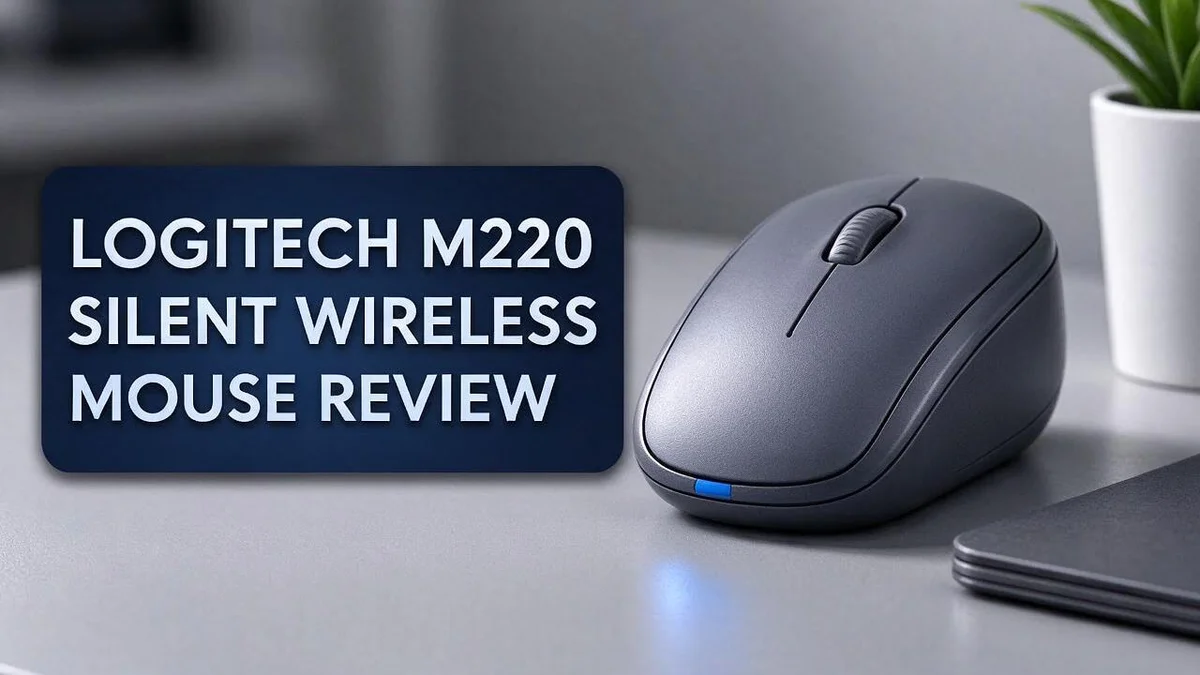
Logitech M220 Silent Wireless Mouse Review: Buyer’s Guide
Are you tired of loud clicks during meetings or late night work? The Logitech M220 Silent Wireless Mouse could be the quiet companion you need. It offers a softer click that keeps the noise down around you.
Many users say the clicks sound genuinely quiet, not just muffled. The mouse feels light and compact, so it fits easily into a laptop bag. Its wireless range reaches up to 10 m, so you can work from across the room.
Battery life is another strong point. One AA battery can last around 18 months because the mouse sleeps on its own when idle. It works with both Windows and macOS, so you can plug it in and start right away.
In this review, we look at the design, performance, and everyday use. We also explain who this mouse suits best and who should look elsewhere.
In a Nutshell
- Best for everyday tasks: The M220 suits email, web browsing, document editing, and video calls. It handles these daily jobs with ease, so you rarely need anything more.
- Light and easy to carry: The compact shape fits neatly into a laptop bag. You can take it to work, school, or a café without adding extra weight to your load.
- Works across a wide area: The wireless connection reaches up to 33 feet. You can sit back on the couch or move across the room and still control your screen.
- Secure wireless connection: The mouse uses strong 128 bit encryption. This helps keep the link between the mouse and your computer protected during daily use.
- Simple setup on two systems: It works with both Windows and macOS. You can switch between computers without any trouble, which suits mixed households and offices.
- Not built for gaming: The 1000 DPI sensor is basic. Gamers should look at a model with a higher sensor setting for faster, finer tracking.
Design and Comfort

Last update on 2026-11-26 / Affiliate links / Images from Amazon Product Advertising API Some of the links on this website are affiliate links, which means that at no additional cost to you, I earn a commission if you click through and make a purchase. I only recommend products and services that I believe will add value to my readers. Thank you for your support!
The Logitech M220 has a simple, rounded shape. Your palm rests on the body without much effort. Your fingers reach the buttons with ease.
Grip matters more than most people think. A mouse that feels right keeps your wrist relaxed. That comfort adds up during long work sessions.
The two main buttons sit at the top edge. They respond to a light press. You do not need to push hard to click.
The scroll wheel sits between the buttons. It moves in small, smooth steps. Scrolling through long spreadsheets or web pages feels steady.
Thumb space is limited. The M220 has no side buttons. Users who want back and forward keys may miss them. Still, the clean surface stays easy to use.
Most desks let the mouse glide smoothly across the surface. Small movements feel steady enough for daily tasks. You can work for hours without much fuss.
Click position shapes the feel. Place your index finger on the left button and let it rest. Your middle finger can stay near the wheel. This setup keeps movements short and controlled.
Long sessions need extra care. Hold the mouse with a relaxed hand. Take short breaks every hour. Your wrist will thank you.
Keep your elbow close to your body. Place the mouse near the keyboard. This posture reduces strain on your shoulder.
Rest your forearm on the desk for support. A soft cloth or pad can add cushion under your wrist. Avoid gripping the mouse too tightly during long tasks.
Large hands may find the shape a bit small. Hand size changes everything about comfort. Try the mouse in a store if you can.
In short, the M220 suits people who want a simple, relaxed fit. It rewards light use with a calm, easy feel. Many people find this shape easy to learn.
Silent Click Performance
Quiet clicks change how a mouse fits into daily life. Most people only notice clicks when they hear them from across a room. The M220 keeps that sound low, so it stays out of the way.
Shared spaces feel calmer with this mouse. Open offices, libraries, and waiting rooms all ask people to stay quiet. A soft click lets you work without drawing attention.
Think about how often you click in one hour. Each small press adds up. Quiet feedback keeps the experience calm all day.
Bedrooms benefit too. A sleeping partner or child nearby will not wake up to every click. This makes the mouse a good fit for shared homes.
Your finger still feels a clear response when you press. The sound fades, but the button still tells you that your click registered.
Video calls reward a quiet mouse. Microphones pick up desk noise. A soft click keeps your voice clear for the people on the other end.
Quiet design also helps the people around you. Coworkers stay focused on their own tasks. Teammates on calls hear less clatter.
Pairing this mouse with a quiet keyboard creates a calmer desk. Together, they remove most of the noise from your workspace.
Some people worry that quiet clicks feel mushy. Give the mouse a few days of use. Most people adjust to the lighter sound and find the press feels natural.
Test it in a real setting. Try the mouse during a call or in a quiet room. Listening to your own clicks helps you decide if the sound suits your needs.
The quiet click brings a clear benefit. It supports focus, courtesy, and a calm work environment.
Battery Life and Wireless Range
The Logitech M220 runs on a single AA battery. Its battery life often reaches about 18 months. That means fewer trips to the drawer for spare cells.
The mouse uses automatic sleep mode to save power. When it sits idle, it drops into a low power state. A single movement wakes it up again.
Power saving matters most for people who travel. A mouse that lasts for months stays ready in a laptop bag. You never need to pack extra cells for a long trip.
Wireless range shapes where you can work. The M220 lets you move around your room while staying connected. Think about where you place the USB receiver.
Placement changes how well the signal travels. Plug the receiver into a port near the front of your computer. Thick walls and metal objects can weaken the link.
A clear line of sight helps. Avoid hiding the receiver behind a monitor or under a desk. Small changes often make the cursor feel smoother.
Laptop users gain the most flexibility here. You can work from a couch, a kitchen table, or a standing desk. The mouse keeps responding without a cable pulling at your device.
Many people also enjoy the simple setup. The receiver stays plugged in, so there is nothing to charge or sync each morning.
Battery checks stay simple too. Keep a spare AA battery in your drawer so your work never pauses. Good planning keeps the mouse ready for meetings and deadlines.
Quick tip for longer storage. Remove the battery if you put the mouse away for many months. This step prevents leaks and keeps the mouse in good shape.
Together, long battery life and steady range make the M220 a dependable daily partner. You spend less time on setup and more time on your work.
Top 3 Alternatives
If the Logitech M220 Silent does not fit your needs, these three mice may suit you better. Each one offers quiet clicks and a comfortable feel.
Logitech M330 Silent Plus


Last update on 2026-11-26 / Affiliate links / Images from Amazon Product Advertising API Some of the links on this website are affiliate links, which means that at no additional cost to you, I earn a commission if you click through and make a purchase. I only recommend products and services that I believe will add value to my readers. Thank you for your support!
This mouse uses a small USB receiver, so setup takes only seconds. Its clicks stay very quiet, which helps in shared offices or late night work sessions. Its battery can last up to two years. The medium size fits both large and small hands.
Logitech Pebble 2 M350

Last update on 2026-11-26 / Affiliate links / Images from Amazon Product Advertising API Some of the links on this website are affiliate links, which means that at no additional cost to you, I earn a commission if you click through and make a purchase. I only recommend products and services that I believe will add value to my readers. Thank you for your support!
This mouse has a slim, modern design that fits well on any desk. It connects over Bluetooth or a USB receiver, so you can switch between computers easily. The clicks stay quiet, and the scroll wheel feels smooth. If you want a clean look and flexible connections, this model is a strong choice.
Microsoft Bluetooth Mouse

Last update on 2026-11-26 / Affiliate links / Images from Amazon Product Advertising API Some of the links on this website are affiliate links, which means that at no additional cost to you, I earn a commission if you click through and make a purchase. I only recommend products and services that I believe will add value to my readers. Thank you for your support!
This mouse connects straight to your computer with Bluetooth. You do not need a USB port, so your ports stay free for other devices. It runs on a standard AA battery, which makes replacing power simple. The compact shape suits travel, and it works well for everyday browsing and document work.
Compatibility and Setup
The Logitech M220 works with both Windows and macOS. This makes it a good fit for mixed households.
Many people switch between a work laptop and a home desktop. You can use the same mouse on both machines.
Setup begins with the small USB receiver. Plug it into a free USB port on your computer.
In most cases, the mouse arrives already paired with its receiver. Your computer should detect the device within a few seconds.
Choose a direct port when you can. Avoid USB hubs and extension cables if possible. Connecting straight to the computer keeps the signal stable.
Basic use needs no extra software. The mouse works right away for clicking, scrolling, and pointing on both systems.
Adjust pointer speed in your system settings. On Windows, the mouse settings menu controls cursor speed. On a Mac, the Mouse section of System Settings does the same job.
This keeps the mouse feeling natural on any desk. Small changes can make a big difference during busy work days.
No Bluetooth connection is needed. The receiver uses a USB connection, so older computers without Bluetooth can still work. This makes it useful for work machines that block extra installs.
Moving the receiver to another computer takes about the same time as the first setup. Simply unplug it and plug it into the new machine.
If the cursor does not respond, try a quick fix. Unplug the receiver and plug it back in. Restart the computer if the mouse still stays still.
Check your ports before you start. If your computer has only newer ports, use a simple adapter. The receiver itself uses a standard USB plug.
Most people finish setup in only a few minutes. A simple start means less time fussing and more time getting work done.
Precision and Gaming Suitability
The sensor handles everyday tasks well. The 1000 DPI sensor tracks movement in a smooth and reliable way. Browsing, editing documents, and moving between spreadsheet cells all feel easy.
Fine control has limits on large screens. A 1000 DPI sensor offers less detail than higher resolution models. On a big monitor, tiny cursor moves may feel less exact than you expect.
Gaming is not the main goal here. This mouse is not built for fast shooters or competitive play. Quick flicks and precise aiming need a sensor and buttons designed for games.
Gamers should look for a dedicated model. Gaming mice often offer higher sensitivity, extra buttons, and adjustable weights. These features help during long sessions with fast action.
Office workers and students benefit most. Most people in these roles never need extreme precision. Steady tracking and quiet clicks matter far more for daily work.
Pointer control stays steady on most desks. A clean, flat surface helps the sensor track consistently. Small cursor movements feel predictable during spreadsheets, design layouts, and long reading sessions.
Accuracy matters more than speed for most users. Precise pointing helps when you select small icons or resize windows. The mouse handles these tasks without strain.
Compare it with your daily habits. Track how often you zoom into maps or edit photos. If those tasks feel frustrating, consider a higher resolution model.
Test the feel before you rely on it. Spend a week with the mouse on your normal tasks. Notice whether the cursor stops where you want it.
Choose the right tool for your goals. Pick this mouse for calm, dependable daily work. Skip it if sharp aim or fast reactions drive your decisions.
Clear expectations lead to happy results. Know the strengths and limits before you commit. This mouse shines in quiet, steady work, not in high stakes play.
Pros and Cons
Pros
– Clicks stay quiet in libraries and shared offices.
– The light and compact body fits easily in a backpack.
– The comfortable shape suits long work sessions.
– The simple two button layout is easy to learn.
– Quiet clicks sound smooth, not muffled.
Cons
– Only two buttons limit shortcut options.
– The small size may feel cramped for large hands.
– Lower detail may frustrate photo editors and designers.
– It is not the right pick for competitive gaming.
Who Should Buy It
This mouse suits people who work in quiet places. Office workers, students in libraries, and remote workers in shared homes often need a calm tool. Nobody wants a loud click during a video call.
Parents and night owls also benefit from this design. A person who works late can click through emails without waking a sleeping partner or child.
Travelers and commuters will find the compact body helpful. It slides into a laptop bag without adding bulk. The wireless range reaches about 10 meters, so it works across a café table.
Users who dislike charging cables will like the battery setup. This mouse runs on one AA battery. Keep a spare in a drawer, and the mouse never stops during a deadline.
Shared family computers suit this mouse well. Kids doing homework and adults paying bills can use the same quiet clicks. Nobody has to argue about noise.
People who want Bluetooth should look elsewhere. The M220 uses a USB receiver, so buyers who want to skip dongles may prefer another model. The Logitech Pebble M350s ranked first in a roundup of quiet Bluetooth mice.
Shoppers who want a different silent design can also check the Samsung Silent Bluetooth Wireless Mouse. It ranked second in the same roundup.
If you need a quiet tool for everyday tasks, this mouse fits well. Check your daily needs first, then decide.
Final Verdict
The Logitech M220 is a strong choice for quiet, everyday computing. It handles simple jobs well and keeps the room calm.
Its main strength is focus. The mouse does not try to do everything. Instead, it aims to be a steady tool for basic tasks.
Overall, the M220 earns a clear recommendation for the right buyer. People who need a silent and dependable mouse will likely be happy with it.
The research shows real strengths. Reviewers say the clicks are genuinely quiet, not just muffled. That matters for anyone who shares a room with others.
The drawbacks are also clear. It is not made for gaming, and its lower resolution limits fine detail work. These limits are known up front.
Still, the sources list no other documented flaws. That gives buyers a simple picture of what to expect.
Compare it with the Logitech Pebble M350s before you buy. The Pebble M350s ranked first in a quiet Bluetooth mice roundup, so it deserves a look.
Shoppers who compare options should also check the Logitech M330 Silent Plus. It is another quiet design from the same brand and a close rival.
Think about your own space before you decide. A shared apartment, a calm study nook, or a busy family desk all suit a silent mouse.
Think about how often you type, browse, and answer email. Users who mostly handle these tasks will feel right at home with this mouse.
In short, the M220 offers quiet and reliable performance at a simple level. It may not impress power users, but it does its job well.
If quiet clicks and a long lasting setup matter most to you, this mouse deserves a spot on your shortlist.
Frequently Asked Questions
Does the Logitech M220 work with Windows and macOS?
Yes, the M220 works with both Windows and macOS. You can use it on a desktop or a laptop. It fits well in mixed home and office setups.
How far can the M220 reach from my computer?
The M220 has a wireless range of up to 10 m (33 ft). You can work from across a small room or from a comfortable chair. Walls and large objects may shorten that distance.
Is the M220 wireless connection secure?
Yes, the connection uses 128-bit encryption. This helps protect the signal between the mouse and your computer. You get a secure link without extra setup steps.
How quiet is the M220 compared to other mice?
The M220 cuts noise by about 90% compared with standard mice. That gives you a much calmer desk. Your clicks stay soft, so the people around you stay focused.
How long does the M220 battery last?
The M220 runs on one AA battery. Battery life reaches about 18 months with auto-sleep. The mouse uses less power when it sits idle, so you replace the battery far less often.

Hello everyone my name is Alenya and i am a gadget discovering Enthusiast 🐻🐻