Logitech MX Master 4 Review: Top Tier or Trash?
Your mouse does more work than you think. Every click, scroll, and swipe adds up during a long workday. That is why the right mouse matters so much.
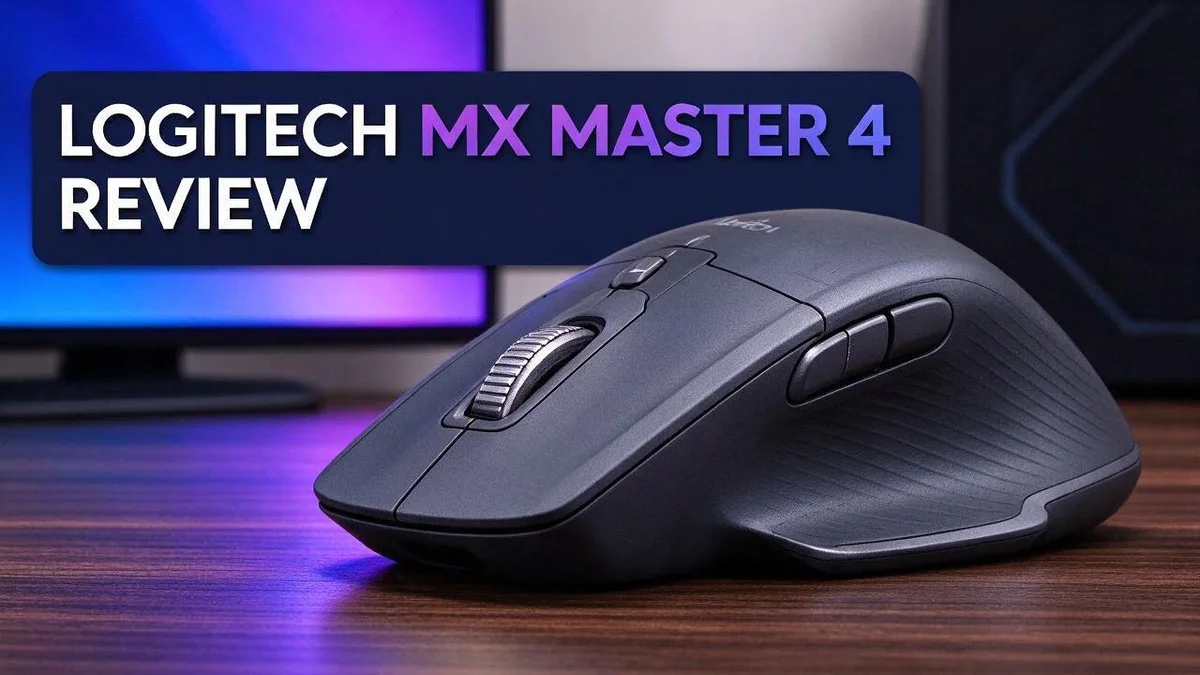
Logitech has a new flagship in the MX Master 4. It adds a magnetic scroll wheel that switches between precise step mode and free spin mode.
You can also set multiple customizable buttons to handle the tasks you repeat most. Its cursor glides smoothly across most surfaces.
Many people wonder if this mouse is a real step up. Keep reading to see how it feels in daily use. We cover the good, the not so good, and who should buy it.
In a Nutshell
-
Smooth daily comfort: Long writing sessions and spreadsheet work feel easier on the hand, so the day feels less tiring.
-
Steady cursor control: The pointer glides with little effort, which helps during detailed photo editing or careful page layouts.
-
Reliable on the move: The mouse keeps working well when you switch between cafes, hotels, and offices without needing constant fixes.
-
Setup needs an account: Custom button settings require a Logitech account, so plan this step before you start to avoid surprises.
-
Gaming limits: The 125 Hz polling rate may feel slow for fast-paced games, so gamers often look at other options.
-
Check your current model: If you already own the MX Master 3S, compare the changes first to see whether the upgrade fits your daily needs.
Key Features and Magnetic Scroll Wheel


Last update on 2026-11-26 / Affiliate links / Images from Amazon Product Advertising API Some of the links on this website are affiliate links, which means that at no additional cost to you, I earn a commission if you click through and make a purchase. I only recommend products and services that I believe will add value to my readers. Thank you for your support!
The scroll wheel is one of the best parts of the MX Master 4. Logitech uses magnetic technology inside it. This design changes how you move through long pages.
Magnets pull the wheel into place. Each notch feels crisp and clear. You can feel every step when you scroll slowly.
The wheel offers two scrolling modes. You can switch between them with a quick press. Many people find this handy during a single workday.
Incremental mode moves the page in clear steps. It suits tasks that need accuracy. Think of editing a contract or checking a table line by line.
Free spin mode lets the wheel glide with almost no resistance. A single flick can move you through hundreds of lines. This works well for long articles, large code files, or endless social feeds.
Switching modes stays simple. A quick press changes the feel instantly. You never need to stop your work or open a menu.
Free spin mode also helps with fast navigation. Your thumb can rest while the page keeps moving. Many users say this saves wrist effort during long scrolling sessions.
The wheel also feels solid in the hand. It does not wobble or stick during quick scrolls. Clean motion matters when you move through spreadsheets or timelines.
Scrolling also shapes how you read. Free spin mode lets you skim research papers quickly. Incremental mode helps you slow down and check details. Switching between them matches your reading style. Many people switch modes several times in one session without thinking about it.
Consistent motion matters most for daily work. The wheel responds the same way from morning to night. Your scrolling stays predictable across every task.
Overall, the scroll wheel gives you control at every speed. Slow steps feel exact, and fast spins cover distance quickly. It makes the MX Master 4 a strong pick for anyone who scrolls all day.
Design, Ergonomics and Build Quality
The MX Master 4 uses a large, sculpted body that cradles your palm. Your hand rests in a natural position, so the grip feels stable.
Hand size matters a lot here. Larger hands usually find the most room, while medium hands still feel supported by the curve.
The thumb rest deserves a closer look. It sits in a shelf that keeps your thumb relaxed. You never need to stretch to reach the side buttons.
Wrist position changes comfort too. The gentle slope keeps your wrist at a relaxed angle, which can ease tension during a long workday.
Grip styles also matter. Palm grip, claw grip, and fingertip grip each feel supported, though palm users notice the most benefit.
Weight plays a big role in how a mouse feels. This model feels substantial without being heavy. Quick flicks stay smooth, and slow adjustments feel precise.
The surface finish feels smooth yet grippy. Your palm stays put, even after hours of steady use.
Build quality feels solid from the first touch. Buttons click with a firm response, and the shell shows no creaks when you press on it.
Different desks suit this mouse well. Glass, wood, and fabric surfaces all keep the body steady under your hand, so you can work almost anywhere.
Rest your arm on the desk for a while, and the shape still feels natural. Your forearm does not need to tense up to hold the body in place.
Fans of the MX Master 3S will spot a familiar outline. The shape stays close to the older model, so the switch feels natural.
Small details also add up over time. The buttons sit where your fingers expect them, and the layout keeps your fingers from searching for controls.
Overall, the design balances comfort and strength. Your hand, your desk, and your daily routine all benefit from this thoughtful build.
Sensor Accuracy and Cursor Performance
The sensor is where the MX Master 4 earns its reputation for accuracy. Every movement you make gets read by the sensor first. Logitech upgraded this part compared with the MX Master 3, so the pointer responds more closely to your hand.
Tracking works well on many surfaces. Glass desks, wood tables, and fabric mats all give the sensor enough detail to follow. Shiny or plain surfaces may still cause small jumps, so test your desk before you settle in.
Recalibration is rarely needed. Many older mice need frequent resets when the sensor loses its position. This mouse keeps its tracking steady without constant resets. Fewer interruptions keep your workflow smooth.
Accuracy matters most when you move slowly. Small, precise motions help you hit tiny icons, select text, or drag timeline clips. The sensor keeps these movements clean, so you do not need to correct your path. Designers and video editors often notice this first.
Speed and precision work together. Quick flicks across a wide monitor stay predictable. Slow adjustments near the edge of a window also feel controlled. This balance helps you work faster without losing accuracy.
The Logitech software lets you adjust the DPI setting. Higher settings move the pointer farther with less hand motion. Lower settings suit detailed work and give you more control.
Tip: Try a lower pointer speed in your system settings. Then raise it slowly until the cursor feels right. Many people find a middle setting gives the best control for daily tasks.
Pointer acceleration deserves a check. Some computers add extra acceleration by default. Turning it off gives you a consistent distance for every movement, which many users prefer for editing and design work.
Overall, the sensor delivers a dependable cursor. It handles everyday tasks with ease. You can focus on your work instead of fighting the pointer.
Top 3 Alternatives
If you want a different mouse, these three options cover most needs. Each one offers comfort, smooth control, and easy switching between devices.
Logitech MX Master 3S

Last update on 2026-11-26 / Affiliate links / Images from Amazon Product Advertising API Some of the links on this website are affiliate links, which means that at no additional cost to you, I earn a commission if you click through and make a purchase. I only recommend products and services that I believe will add value to my readers. Thank you for your support!
The Logitech MX Master 3S is a great pick for daily office work. Its quiet clicks help you focus during long meetings and calls. The MagSpeed scroll wheel moves fast through long documents, then stops with precision. The shape fits the hand well, so your wrist stays relaxed. You can pair it with up to three devices and switch between them with one button.
Razer Pro Click

Last update on 2026-11-26 / Affiliate links / Images from Amazon Product Advertising API Some of the links on this website are affiliate links, which means that at no additional cost to you, I earn a commission if you click through and make a purchase. I only recommend products and services that I believe will add value to my readers. Thank you for your support!
The Razer Pro Click suits creative people and gamers who want accurate control. It has a comfortable shape and a smooth, responsive scroll wheel for editing timelines and design files. The side buttons are easy to reach with your thumb. It also connects to multiple computers, so you can move between work and personal setups with ease.
Logitech MX Anywhere 3S

Last update on 2026-11-26 / Affiliate links / Images from Amazon Product Advertising API Some of the links on this website are affiliate links, which means that at no additional cost to you, I earn a commission if you click through and make a purchase. I only recommend products and services that I believe will add value to my readers. Thank you for your support!
The Logitech MX Anywhere 3S works best for people who travel often. It is small and light, so it fits into a laptop bag or jacket pocket. It tracks well on almost any surface, including glass. You can connect it to three devices at once. Its compact design and quiet clicks make it a smart choice for cafes, trains, and shared workspaces.
Button Customization and Software Setup
Every button on the MX Master 4 can do more than its default job. The software lets you assign new actions to each one. This small change can save you many clicks each day.
Start with the software setup. Download the Logitech software from the official website. Install it on your computer, then open the app. Your mouse should appear on the main screen within seconds.
Sign in to unlock full customization. The software asks for an account before it unlocks button settings. Create an account or log in with an existing one. Keep your login details somewhere safe.
Map buttons to the actions you use most. Open the button settings and click the control you want to change. Pick an action from the list, such as copy, paste, or switching apps. Then test the action once to confirm it works.
Think about your daily routine. Tasks you repeat often make the best choices. Maybe you copy text dozens of times a day. Assign that action to a side button and your hand stays on the mouse.
Create profiles for each app. The software can set different button actions for each program. Your design app might use one shortcut, while your browser uses another. The software switches profiles automatically when you open an app.
Use gestures for quick commands. Press and hold the gesture button, then move the mouse in a direction. Each direction can trigger a different command. Many people find this faster than reaching for the keyboard.
Keep your layout simple. Too many shortcuts can confuse you. Start with three or four changes. Add more once they feel natural.
Save your settings after changes. Your setup stays linked to your account. Check your settings after a system update. Reinstalling the software is often the quickest fix if a button stops responding.
Battery Life, Connectivity and Travel Use
Battery life matters a lot when you work away from your desk. A dead mouse can slow your whole day.
The MX Master 4 suits daily work and longer trips alike. Battery results depend on how often you use the mouse.
For the latest battery details, check the official Logitech website.
Charge the mouse fully before a long flight. This small habit keeps you ready for surprises.
Fewer active features can also stretch each charge further. Focus on the functions you use most.
Connectivity keeps setup simple. The mouse pairs with your computer in just a few moments.
Once connected, the link stays steady. You can focus on your work instead of your hardware.
Connection quality matters most when you move between rooms, cafes, or hotel lobbies.
Keep your computer close to the mouse for the best results. Crowded radio zones can cause small delays.
Polling rate deserves a quick mention. The MX Master 4 reports its position at 125 Hz.
That rate is lower than many gaming mice offer. Most office tasks, web browsing, and document editing still feel smooth.
If you play fast shooting games, a dedicated gaming mouse may suit you better.
Travel use is where this mouse truly shines. It fits into a laptop bag without fuss.
Reliable performance matters in airports, trains, and shared offices. The mouse keeps working when your schedule changes.
A quick check before you leave helps a lot.
Confirm the battery level, pair the mouse with your laptop, and test the scroll wheel.
This short routine prevents surprises at the gate or in a hotel room.
Pack a short charging cable with your gear.
Store the mouse in a padded pocket so the scroll wheel stays protected.
These simple habits keep your setup ready wherever your day takes you.
Pros and Cons
Pros
- The magnetic scroll wheel glides smoothly and feels satisfying.
- You can switch between precise clicks and free spinning.
- The cursor moves smoothly across the screen.
- The sensor performs better than the MX Master 3.
- The refined shape feels comfortable during long sessions.
Cons
- Fast gamers may want a higher polling rate than 125 Hz.
- Owners of the MX Master 3S may not notice a big change.
- Upgrading from older models may feel like a small step forward.
Who Should Buy It
Office workers and multitaskers form the core audience. People who jump between spreadsheets, emails, and documents need quick control. This mouse gives them that control without extra effort.
Writers and editors also gain a lot. Long scrolling through drafts or research papers feels less tiring. The scroll wheel handles big documents with ease, so readers can skim fast and then slow down.
Creative professionals who use many shortcuts should pay attention. Designers and video editors often assign tasks to several buttons. The MX Master 4 offers enough controls to hold those shortcuts in one place.
Frequent travelers form another strong group. Consultants and sales staff who work from airports or client offices carry their gear daily. A mouse that needs little recalibration keeps work moving.
People who dislike constant setup tweaks will appreciate the stable sensor. Some mice need regular adjustments to track well. This model avoids that hassle, which saves time each week.
Students and home users may find the mouse more than they need. Light browsing and casual email tasks do not use its full feature set. A simpler model may serve them just as well.
Anyone who wants a pure gaming tool should consider other mice. Gaming needs can differ from daily office needs. This model focuses on productivity, so players may want a different choice.
Hybrid workers who split time between home and office gain a consistent feel in both places.
Buyers who plan to use one mouse for several years should think about how many features they will actually use. Each feature should match a real task. That match makes the purchase feel right. Many buyers skip this step and regret it later. A short trial of daily tasks helps most.
Bottom line: the MX Master 4 suits professionals who want smooth and reliable daily control. Casual users and hardcore gamers may choose differently. Think about your work style before you decide.
Final Verdict
Overall, the Logitech MX Master 4 earns a strong recommendation for most desk workers. It delivers smooth cursor control, a comfortable shape, and useful customization. It stands out as a reliable daily companion.
The best reason to buy this mouse is its fit with real routines. Your setup can change along with your work. That flexibility helps you stay focused and productive.
Still, it does not suit every user. Some people may not want to create an account to unlock full customization. Others may find the feature list heavier than they need.
Think about your daily tasks before you decide. If you mostly browse, write, and answer emails, this mouse gives you plenty of control.
If you only need basic clicks, a simpler model may feel like a better match.
Look closely at the features you will use every day. Ignore the extras you will never touch. This keeps your choice simple and practical.
Other mice on the market serve different needs. The Logitech M90 suits simple office tasks. The Freewolf A3 offers a basic wireless option. The Logitech G Pro suits competitive players who need sharper tracking. Each one offers a different balance of features.
Shoppers who prefer comfort and control will likely feel happy with this mouse. It rewards people who spend hours at a computer. It may become the device you reach for every single day.
Test it in a store if you can. Check how the grip feels in your hand. A good fit matters more than any feature list.
In short, this mouse is a strong pick for busy desk users. Read your needs first, then decide with confidence. Your next mouse should feel right every time you pick it up. Trust your own needs over hype.
Frequently Asked Questions
Do I need an account to customize the buttons?
Yes, you do. The button customization needs a Logitech account, so create one before you start. Sign in once, then assign your favorite actions.
What should I do first after I unbox it?
Install the Logitech software on your computer. Then assign your most used actions to the extra buttons, such as copy, paste, or switching apps. This small step saves time every day.
Does the 125 Hz polling rate matter for everyday office work?
For most desk tasks, it does not. Email, spreadsheets, and documents feel smooth at this rate. The limit shows up mainly in fast gaming, so office users rarely notice it.
Can I use the thumb buttons for shortcuts I repeat all day?
Yes, you can. Pick the actions you repeat most, like switching tabs or opening a new window. Set those actions once, and your hand will quickly learn the rhythm.

Hello everyone my name is Alenya and i am a gadget discovering Enthusiast 🐻🐻