
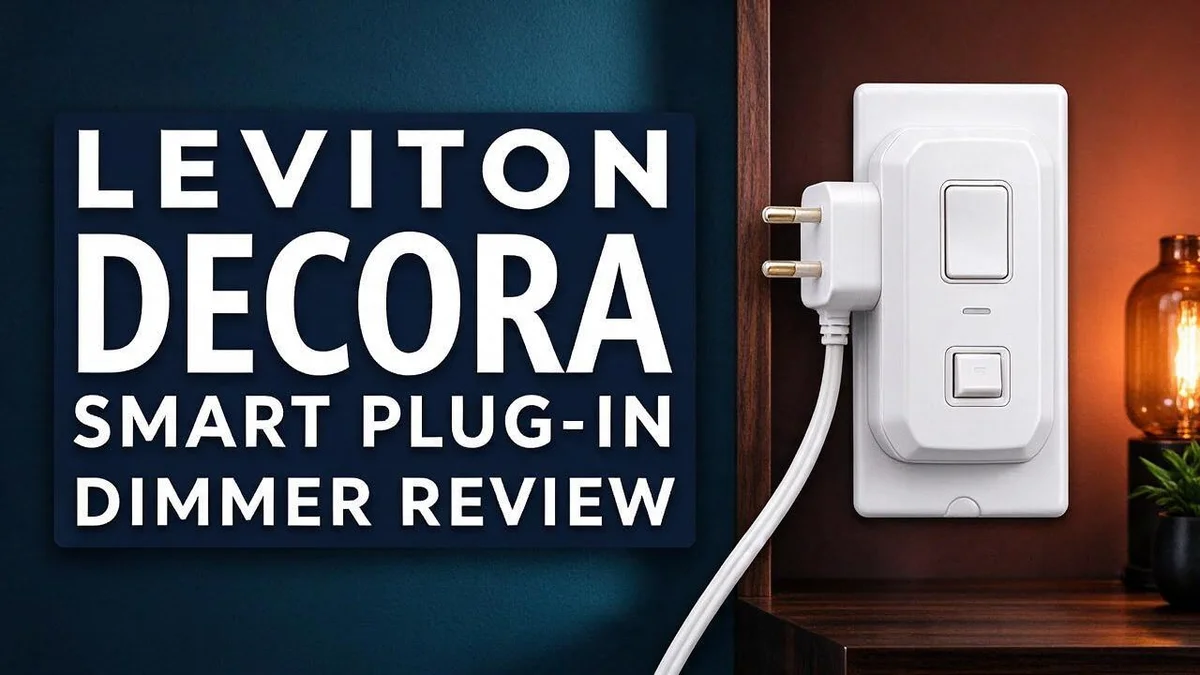
Leviton Decora Smart Plug-In Dimmer Review 2026: Hit or Miss?
Want to control your lights from your phone? The Leviton Decora Smart Plug In Dimmer makes it simple. It plugs into a standard outlet and gives you full control over your lamps.
Many homeowners want better lighting without a full electrician job. This small dimmer works with My Leviton, Alexa, and Google Assistant. You can set custom presets for light level, fade rate, and bulb type. Build quality and reliability get strong praise from users.
Still, it has a few tradeoffs. The switch can run warm to the touch, and the smart home integration relies on the cloud. In this review, we explore how it performs, who it suits best, and whether it deserves a spot in your home.
In a Nutshell
-
Built to last: Many owners praise the reliability and solid build quality of this mini plug-in style device. It keeps working well over long periods, so it suits daily use in busy rooms.
-
Full range dimming: You can adjust brightness from very low to full power. Custom presets let you set the light level, fade rate, and bulb type for each room.
-
Gentle fade effect: Lights fade on and off smoothly instead of switching abruptly. This feels calm at bedtime and pleasant when you wake up.
-
Voice and app control: The dimmer works with Alexa, Google Assistant, and the My Leviton app. You can change lighting from your phone or with a simple voice command.
-
Warm surface: The switch can run warm to the touch during regular use. Check the surface often, especially in enclosed spaces with little airflow.
-
Cloud only home automation: Integration with Leviton home automation depends on a cloud connection. Confirm this setup works with your current smart home system before you commit.
Installation and Setup


Last update on 2026-10-30 / Affiliate links / Images from Amazon Product Advertising API Some of the links on this website are affiliate links, which means that at no additional cost to you, I earn a commission if you click through and make a purchase. I only recommend products and services that I believe will add value to my readers. Thank you for your support!
Setting up this device is quick and simple. You plug the unit into a standard indoor wall outlet. Then you plug your lamp into the dimmer. No wiring tools are needed.
Before you begin, check your lamp. Make sure it is off and that the bulb type works with dimming. Look at the bulb label if you are unsure.
Next, download the My Leviton app. Open the app store on your phone. Search for My Leviton and install it.
Create an account inside the app. Then follow the on screen steps to add a new device. Choose the plug in dimmer from the list.
The app asks you to join your home network. Enter your network name and password. Keep your phone close to the dimmer during this step.
Once the device connects, give it a clear name. A name like Living Room Lamp makes voice commands easier. Use the room name and the light name together.
Next, set your presets. The app lets you choose the light level, the fade rate, and the bulb type. Test each setting so you find the mix you like best.
Link the dimmer to your voice assistant. If you use Alexa or Google Assistant, open that app. Add the dimmer from the device menu. Then ask the assistant to turn the light on and off.
Place the dimmer where air can flow freely. The unit can get warm during use. Keep curtains and furniture away from the back of the device.
Troubleshooting tip: If the dimmer does not appear in the app, reset it. Unplug it for ten seconds, then plug it back in. Try the setup steps again.
Remember that home automation depends on a cloud connection. Check your internet connection before you start. A weak signal can slow down the whole process.
Once everything works, test each light from both the app and the wall switch. Your setup is complete and ready for daily use.
Dimming Performance and Presets
Presets turn dimming into a routine. The Leviton Decora Smart Plug In Dimmer lets you save custom presets. Each preset can hold a light level, a fade rate, and a bulb type.
Bulb type matters more than most people expect. LED and incandescent bulbs respond differently at low brightness. Picking the right bulb type in the settings helps the light look smooth from dim to bright.
Create a few presets for the moments you use most. A soft level works well for reading in the evening. A brighter level suits cooking or cleaning. Two or three presets cover most daily needs.
Fade rate sets the mood. A slow fade gives your eyes time to adjust. This works well before bedtime. A quick fade suits a hallway light that you use often.
Test each preset right after you save it. Walk through the room and check the glow. If the light feels too strong or too weak, change the level in small steps. Small changes help you find the right spot faster.
Keep your preset names clear. Use simple labels such as Reading or Dinner. Clear names help you remember each setting. They also help when you talk to your voice assistant.
Presets also help across the whole home. Set one level for movie night in the living room. Use another for a late snack in the kitchen. Family members can pick the same mood without guessing the right setting.
Think about the rooms where you use light most. Hallways, bedrooms, and reading corners often benefit from presets. Start small and add more as you learn your habits.
Place the lamp where you sit most often. Then set your presets from that spot. This gives you a true view of how the light feels in daily use.
Smart Home Integration
Smart home integration turns this dimmer into a useful part of your daily life. It does more than switch a lamp on and off. It joins your routines, schedules, and voice commands.
Start with a clear room plan. Group your smart devices by room before you connect anything. This makes routines easier to build later.
Routines let one command control several devices. For example, you can say a goodnight phrase and dim the bedroom lamp at the same time.
Schedules add another layer of control. Set the lamp to turn on at sunset. Set it to turn off at bedtime, so you never forget it.
Check your ecosystem first. The research does not list native Apple Home or Matter support. Anyone who wants that setup should confirm compatibility before buying.
Your wireless network plays a big role here. A strong signal near the outlet helps commands respond quickly. Place the dimmer away from thick walls when you can.
Think about multi room use. Each dimmer needs its own name in the app. Use the same naming style across rooms. Voice commands then feel consistent for everyone in the house.
Motion sensors and smart speakers can also trigger actions through compatible apps. Test each automation for a few days. Small timing changes often fix odd results.
Start small with one routine. Add more only after the first one works well. This keeps troubleshooting simple and fun.
Many households share control through the app. Family members can adjust lights from their own phones without confusion.
If you plan a larger setup, compare Lutron smart switches or the ABRA bundle. Each option suits different wiring and home layouts.
Final tip: Keep a simple note of your device names and routines. This helps everyone in the house use the system with confidence.
Top 3 Alternatives
Looking for a different plug-in dimmer? These three options work well for most homes and offer smart control.
Lutron Caseta Plug-In Dimmer

Last update on 2026-10-30 / Affiliate links / Images from Amazon Product Advertising API Some of the links on this website are affiliate links, which means that at no additional cost to you, I earn a commission if you click through and make a purchase. I only recommend products and services that I believe will add value to my readers. Thank you for your support!
The Lutron Caseta Plug-In Dimmer offers reliable control for everyday lighting. It uses its own secure connection, so your lamps respond quickly.
You can control it with the Caseta app or with your voice. Setup takes only a few minutes, and you do not need any extra wiring. It works well in bedrooms and living rooms.
TP-Link Kasa Smart Dimmer

Last update on 2026-09-19 / Affiliate links / Images from Amazon Product Advertising API Some of the links on this website are affiliate links, which means that at no additional cost to you, I earn a commission if you click through and make a purchase. I only recommend products and services that I believe will add value to my readers. Thank you for your support!
The TP-Link Kasa Smart Dimmer connects straight to your home wireless network. You do not need a separate hub to get started.
The Kasa app lets you set schedules, so your lights turn on and off while you are away. It also works with Alexa and Google Assistant. This model suits anyone who wants an easy first step into smart lighting.
Wemo Smart Dimmer

Last update on 2026-10-30 / Affiliate links / Images from Amazon Product Advertising API Some of the links on this website are affiliate links, which means that at no additional cost to you, I earn a commission if you click through and make a purchase. I only recommend products and services that I believe will add value to my readers. Thank you for your support!
The Wemo Smart Dimmer comes from a well known name in home automation. It lets you dim lights from the Wemo app or with simple voice commands.
Many people like how it fits into a larger smart home setup. It supports routines that link lights with other devices. If you already own Wemo products, this option keeps your whole home in one familiar place.
Heat and Safety
Heat matters with any smart dimmer. The Leviton Decora Smart Plug In Dimmer sits in a wall outlet, so it handles power for every lamp you control. Simple habits keep it cool and safe.
Expect some warmth during normal use. Reviewers noted that the switch runs warm to the touch. Dimmers manage electrical load, so a little heat is normal. A warm touch is fine, but a very hot surface is not.
Start with a solid outlet. Check the outlet before you plug in the dimmer. Loose, cracked, or scorched outlets can heat up fast. Replace damaged outlets before you use any smart device.
Give the dimmer room to breathe. Do not cover it with curtains, rugs, or furniture. Air needs space to move around the housing and escape as heat.
Avoid overloaded outlets. Plug your lamp straight into the dimmer. Skip power strips, extension cords, and stacked adapters behind it. Each extra layer adds heat.
Match the bulb and wattage. Bulb type affects both light quality and heat output. Choose bulbs that work with dimming and stay within the load limit printed on the device. Higher wattage bulbs add more heat over time.
Stop using the dimmer if you notice warning signs. A burning smell, crackling sound, discolored plastic, or heat that burns your hand all mean trouble. Turn off the power at the breaker, unplug the dimmer, and let it cool.
Keep the dimmer dry. It is made for indoor use only. Keep it away from sinks, tubs, and damp basements. Moisture and heat together raise the risk of damage.
Keep cords and outlets out of reach. Children and pets may pull on lamp cords or touch warm surfaces. Place lamps where they stay steady and clear of kids.
Follow the manual and local codes. Read the included guide before installation. If you feel unsure about wiring or outlet condition, ask a licensed electrician for help. Safety always comes first.
Build Quality and Reliability
Build quality is a big reason people trust this dimmer. HomeKit News praised its reliability in a 2018 review. A device that keeps working day after day matters more than flashy extras.
The unit uses a mini plug in design with a rectangular body and a single outlet. This compact shape keeps the dimmer small and simple. Simple designs often mean fewer points of failure over time.
Daily use tests any smart device. Lights turn on and off many times each day. Good build quality helps the dimmer handle this routine without fuss.
Steady performance is what most owners want. Full range dimming should work smoothly from bright light down to very low levels. When the dimmer responds the same way month after month, it shows solid long term reliability.
Cloud access affects long term reliability. Leviton HA integration runs in the cloud only, according to a user forum. Your dimmer may depend on an active internet connection for some smart home commands. If the connection drops, a voice command can fail even when the dimmer itself works fine.
Small signs can reveal bigger problems. Watch for lights that flicker, respond late, or cut out. These issues can point to a loose connection, a weak signal, or an overloaded circuit. Acting early protects both your lamp and your wiring.
Good habits help the dimmer last. Keep the app updated and signed in. Test your commands now and then so you catch problems early. A little attention each month keeps the dimmer working well for years.
Reliability comes from both the product and how you use it. The Decora dimmer earns praise for its build, but a stable home setup makes the biggest difference. Treat it well, and it should serve your home reliably.
Pros and Cons
Pros
- Works with Alexa and Google Assistant for voice control.
- Custom presets adjust light level, fade rate, and bulb type.
- The fade on and off effect softens the change in light.
- Setup runs through the My Leviton app.
- Each unit gives you a clean, simple way to control one lamp.
Cons
- Indoor use only, so outdoor lamps need another option.
- Each unit controls one outlet, so larger rooms need more units.
- Lutron smart switches may suit whole-home projects better.
- Some users may want a different setup for complex lighting plans.
Who Should Buy It
This dimmer suits people who want smart control for one lamp. It fits a bedside table, a reading corner, or a floor lamp in a living room.
Renters often gain the most from this setup. Plug in devices need no wall work, so you can take the dimmer with you when you move.
Caregivers may find it helpful too. A family member can dim a lamp by voice or from a phone. That helps someone who has trouble reaching a wall switch.
Households with Alexa or Google Assistant already have a head start. Voice commands work right away, and you skip learning a new hub.
Apple Home users should check first. Many shoppers look for Apple Home or Matter dimmer plugs, so confirm compatibility before you commit.
Work from home users benefit too. A desk lamp can shift from bright focus light to softer evening tones with a quick voice command.
Photographers and hobbyists also like controlled lighting. They can adjust a lamp without touching it, which keeps shots steady.
Frequent travelers can use the dimmer to make a home look lived in. Pair it with a simple voice routine so the space feels occupied.
Shoppers who want a quick upgrade will like the setup. Plug it in, link the app, and start testing your lamp.
Pick this model if you value simple steps over deep customization. It suits people who want results without a complex plan.
Think about where you use the lamp most. A spot near a sofa, a bed, or a desk gets the most use from smart control.
Overall, the right buyer wants simple smart lighting for one room. If that sounds like you, this dimmer is a sensible choice.
Take time to compare your needs with the features above. A short check now saves frustration later. Your lamps, your phone, and your voice assistant should all work together.
Final Verdict
The Leviton Decora Smart Dimmer earns a solid recommendation. It does one job well. It gives you smart control over one lamp.
Reliability is the biggest strength. Owners trust it for daily use. Lights switch on and off many times each day, so steady performance matters most.
The fade effect adds a nice touch. It softens every change in light. Custom presets also help you set the mood fast.
Keep the warm housing in mind. The switch runs warm to the touch. Place it where heat will not bother you or nearby items.
Cloud access is the main trade off. Leviton smart home integration runs in the cloud only. Choose this dimmer if you accept that limit.
Who should buy it? Renters and bedside lamp owners gain the most. Caregivers may also appreciate voice control for a family member.
Households with Alexa or Google Assistant already have a head start. Voice commands work right away. You skip a long setup.
Apple Home users should check compatibility first. Many shoppers search for HomeKit or Matter plugs. Confirm the fit before you buy.
Larger homes need a different plan. Each unit controls one outlet. Lutron smart switches may suit whole home projects better.
Setup runs through the My Leviton app. The process stays simple for most people. Keep the app handy during your first setup.
Indoor use only is the rule here. Outdoor lamps need another option. Plan your lighting around that limit.
Final thought: this dimmer fits a clear need. It works best for single lamps in indoor spaces. Test it in your own room first. If it fits your routine, it will serve you well.
Frequently Asked Questions
Can I use this dimmer with a ceiling fan?
No, this dimmer works best with lamps. Fan motors and space heaters need steady power, so they should plug into a standard outlet instead.
Do I need dimmable bulbs?
Yes, for the best results. Check the bulb box for the word dimmable. Bulbs without that label may flicker or fail to dim smoothly.
How does it compare with the No-Neutral dimmer?
The No-Neutral Decora dimmer mounts inside the wall box. The plug-in model skips that step. Choose the plug-in if you want to avoid electrical work. Choose the wall model if you want a switch built into the wall.
Do I need a separate hub?
No. The dimmer connects directly to your home wireless network. Keep your router nearby for a steady connection. Thick walls may weaken the signal, so place the lamp within easy range of the router.

Hello everyone my name is Alenya and i am a gadget discovering Enthusiast 🐻🐻